

Enhance your images to 2K, 4K, or 8K resolution
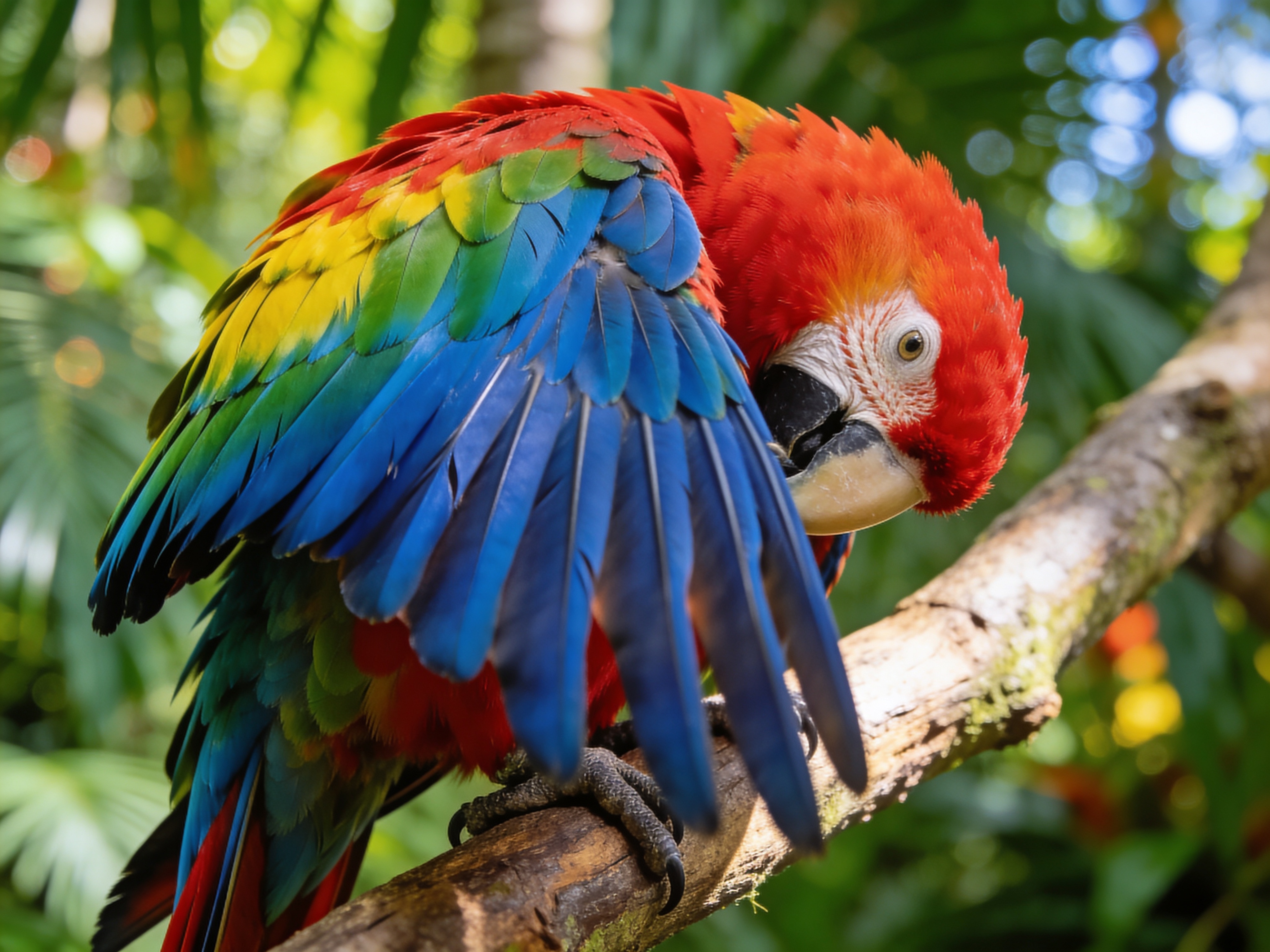
Drag to compare • Upload your image to start
AI Image Upscaler - Wisku Super-Resolution Photo Tool
An AI image upscaler enlarges pixel dimensions while reconstructing detail that ordinary resizing tends to soften. Wisku offers 2K, 4K, and 8K targets with flexible export formats, helping you prepare photos, product shots, illustrations, and generated art for screens, print, or another editing pass.
Choose Image Upscaler Resolution for the Destination
Select 2K for everyday screens, 4K for larger displays and design work, or 8K when the image upscaler should leave your print or crop workflow more room.
Image Upscaler Export Options: JPEG, PNG, and WebP
Match the image upscaler file to the next step: JPEG for compact photos, PNG for editing and transparency workflows, or WebP for efficient web delivery.
Original-to-Upscaled Comparison
Use the image upscaler comparison view to inspect edges, faces, lettering, and textures before downloading instead of judging quality from a small preview alone.
Choose an Image Upscaler Target by Use Case
An image upscaler should serve the destination, because the largest file is not automatically the best file. Choose a target that fits where the image will appear.
- • Use 2K for blog graphics, presentations, marketplace listings, and standard desktop displays
- • Choose 4K for hero images, large monitors, detailed product crops, and further creative editing
- • Reserve 8K for print concepts, archival masters, and projects that need substantial crop flexibility
- • Check the final dimensions and file weight before sending an asset into your publishing workflow
Use the Image Upscaler for Photos, Products, and AI Art
The image upscaler handles varied source material, but each subject fails differently. Evaluate the actual content instead of applying one generic sharpness expectation.
- • Product photos benefit from cleaner contours, labels, materials, and small catalog details
- • Portraits need careful review around eyes, hair, skin texture, jewelry, and glasses
- • Illustrations and anime artwork depend on stable line work, flat color boundaries, and intentional texture
- • AI-generated images often need higher pixel dimensions before layout, print, or detailed retouching
AI Image Upscaler vs Ordinary Image Resizing
Standard resizing spreads existing pixels across a larger canvas. AI super-resolution also predicts plausible high-frequency detail from the source context.
- • Interpolation changes dimensions but often leaves fine edges and textures soft
- • AI upscaling estimates detail; it does not recover an exact hidden original
- • Strong source structure usually produces more dependable results than severe blur or compression
- • A before-and-after review is essential when faces, typography, or product accuracy matter
How to Get a Cleaner Image Upscaler Result
An image upscaler performs best with a suitable source and deliberate export choice; simply selecting the highest resolution is not enough.
- • 1. Start with the least-compressed copy available and avoid repeatedly saved screenshots
- • 2. Crop unwanted borders so processing focuses on the useful image area
- • 3. Inspect small text, straight lines, facial details, and repeating patterns at full size
- • 4. Compare multiple targets before committing to a print or campaign asset
AI Image Upscaler Questions, Answered
What does an AI image upscaler actually do?
An AI image upscaler increases an image's pixel dimensions and predicts additional detail from nearby shapes, colors, edges, and textures. Unlike basic interpolation, it tries to keep the enlarged result visually coherent. The new detail is generated, so important faces, text, and product features should still be reviewed.
Can an image upscaler restore detail that is completely missing?
No upscaler can recover the exact pixels that were never captured or were destroyed by heavy compression. AI can create plausible detail and improve perceived clarity, but it may guess incorrectly. Use the cleanest source available and inspect identity, lettering, logos, and technical details before publication.
Should I upscale an image to 2K, 4K, or 8K?
Choose the smallest target that comfortably fits the final use. 2K suits many web and presentation assets, 4K gives more room for large displays and cropping, and 8K is useful for print or high-resolution masters. A larger output also means a larger file and more generated detail to inspect.
Which image and export formats does Wisku support?
The Wisku image upscaler accepts common image uploads and provides JPEG, PNG, and WebP export controls for supported accounts. JPEG is compact for photography, PNG fits editing or transparency-sensitive workflows, and WebP is efficient for the web. Select the format based on your next tool and delivery channel.
Can I upscale AI-generated artwork and illustrations?
Yes. AI art, digital illustrations, anime-style images, and concept frames can all benefit from higher pixel dimensions. Review line art, repeated patterns, small symbols, and embedded text closely because an upscaler may reinterpret them. Keeping the original lets you compare the generated detail against the intended design.
How many Wisku credits does image upscaling use?
A standard Wisku image upscale currently uses 2 credits. Available resolution and format controls can depend on account status, while the interface shows the options available to you before processing. Sign in, upload an image, review the displayed settings, and confirm the cost before starting the upscale.
Prepare a Higher-Resolution Image for Its Next Use
Upload the strongest source you have, choose a realistic output target, and compare the generated detail before downloading your finished file.