

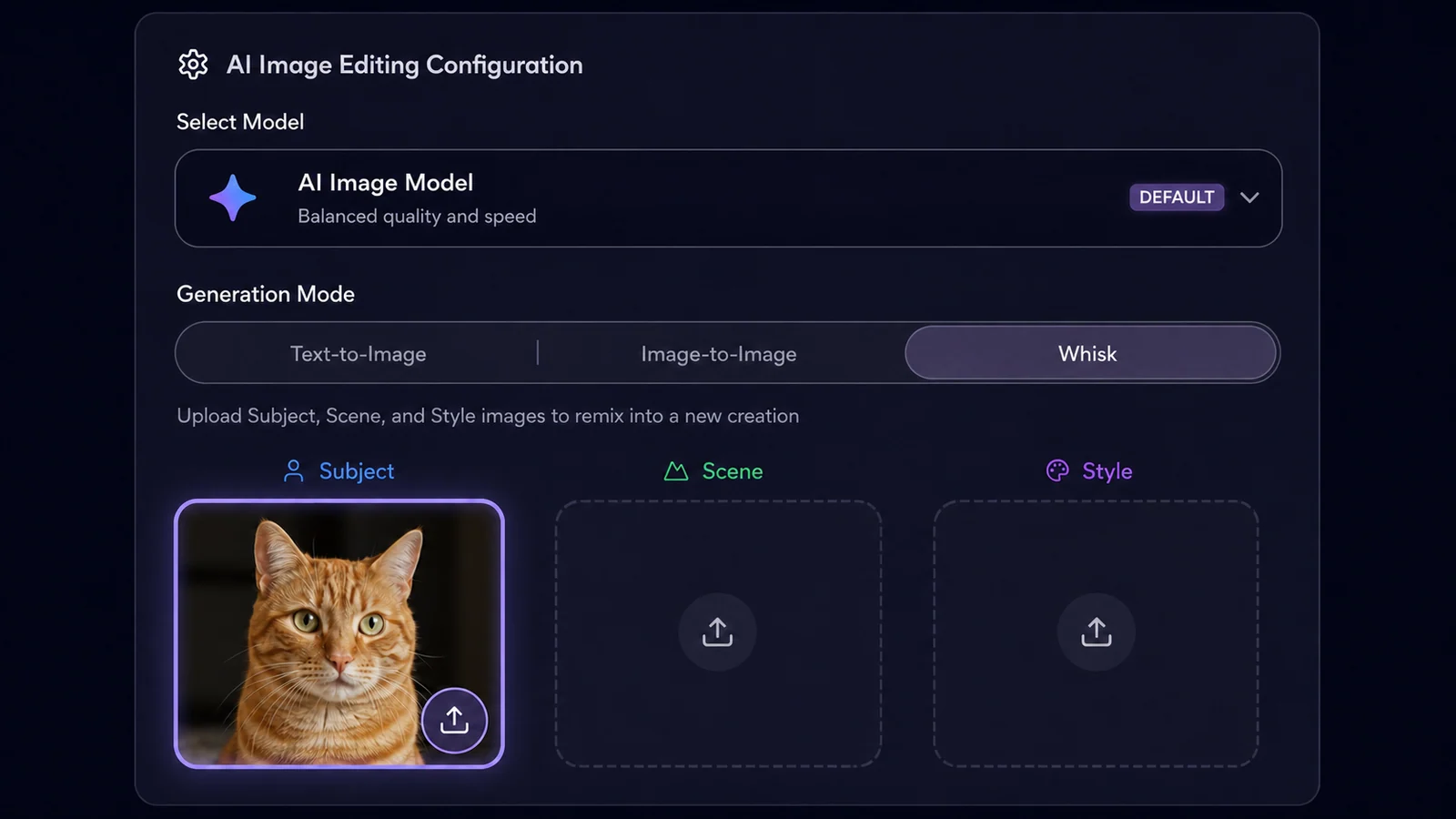
 01
011
Choose What You Want to Make
Use Image for a new still or edit. Use Video for text-to-video, image-to-video, and models that accept extra reference media.

 Wisku AI
Configure your model, prompt, and output


No special prompt formula is required. Start simple, look at the result, and change one thing at a time.
01Use Image for a new still or edit. Use Video for text-to-video, image-to-video, and models that accept extra reference media.
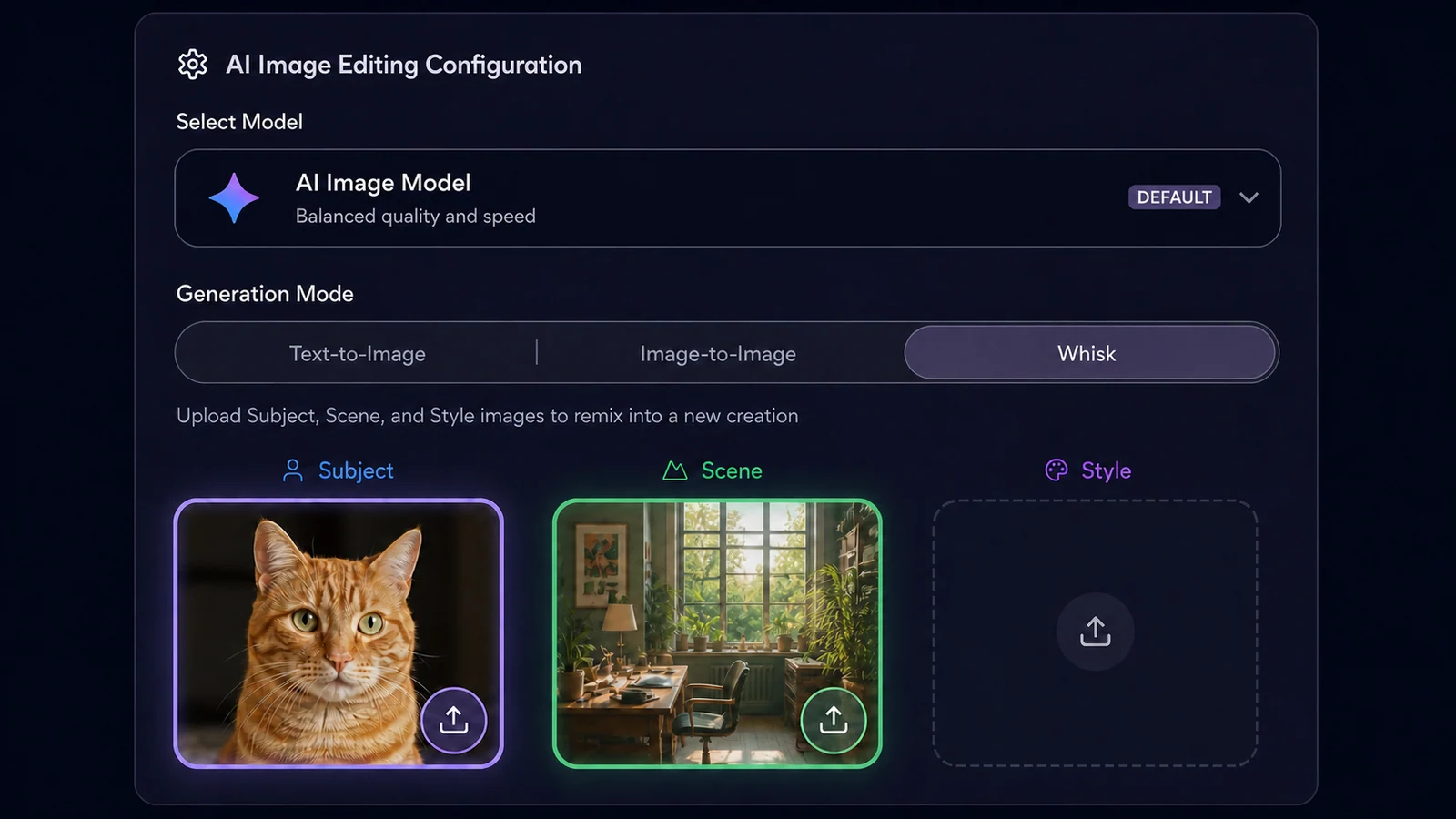 02
02Write the idea in plain language, upload the source image you want to keep close, or use both.
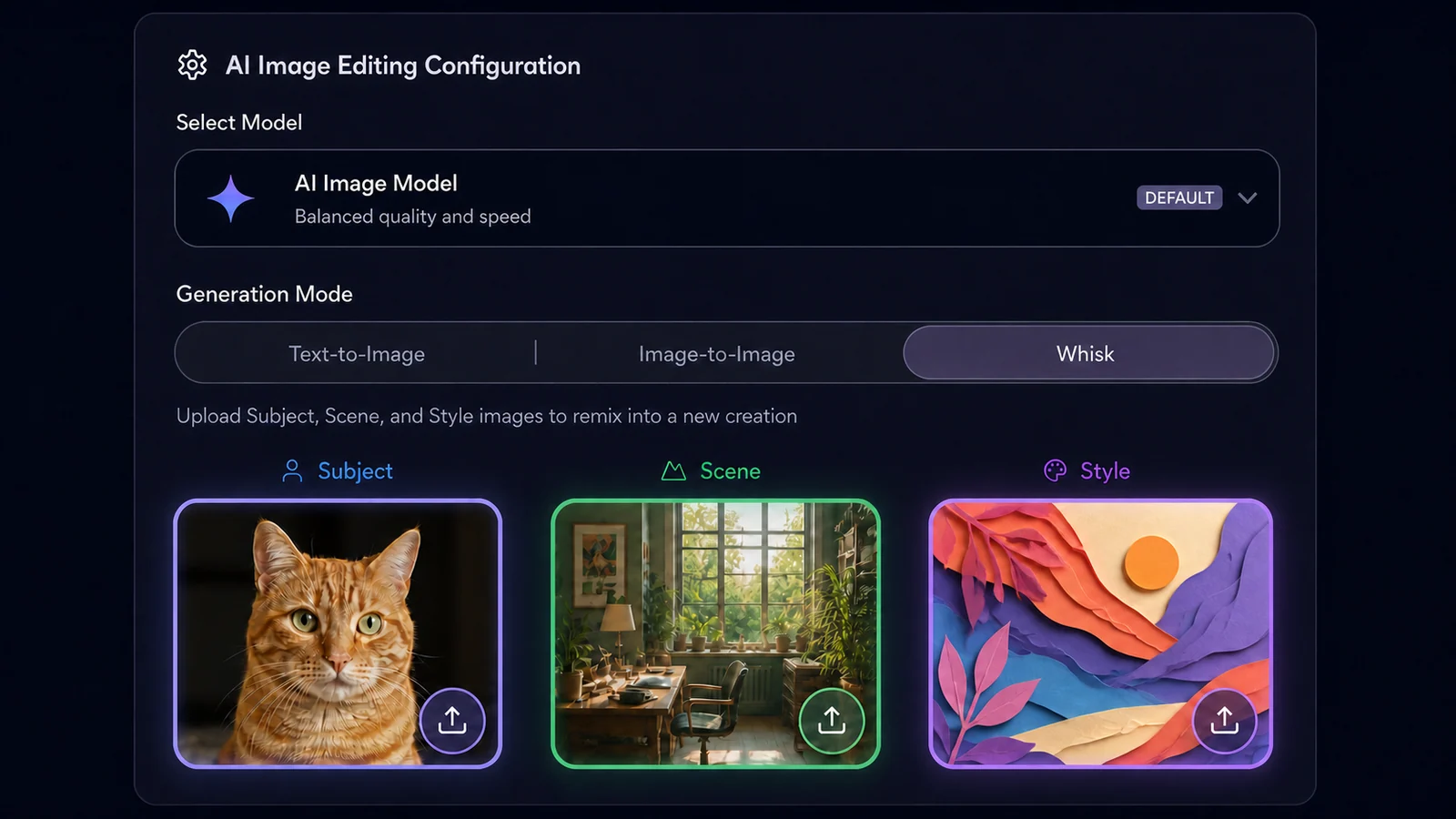 03
03Set the model, aspect ratio, resolution, duration, and other options shown for that mode. Credit use can vary by model.
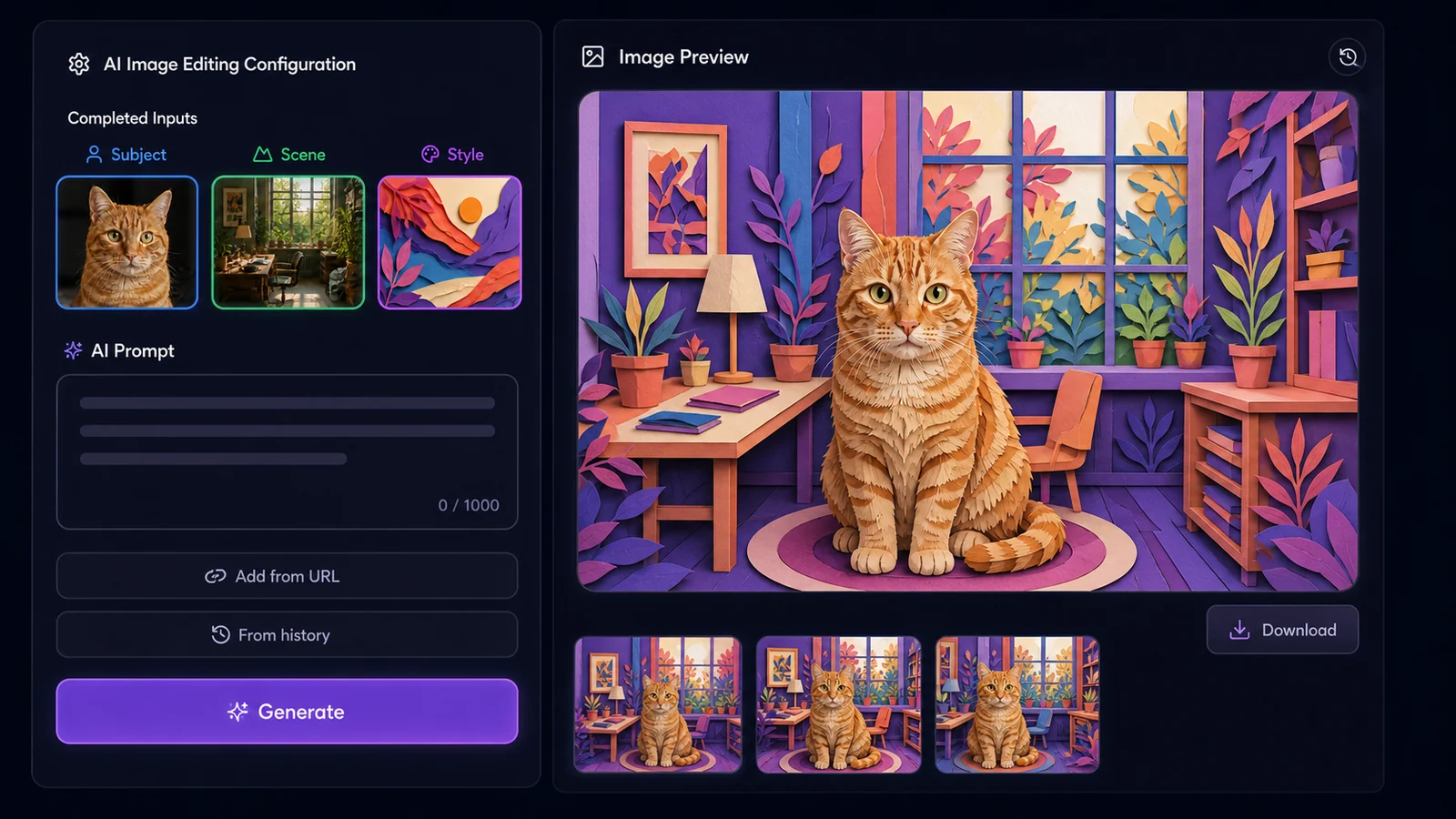 04
04Keep the result that works. If it is close, edit it again; if the frame is ready, animate it; if not, revise the prompt or reference.
Wisku AI is useful when the job starts with a still but may not end there. These are practical ways to use prompts, references, edits, and motion together.
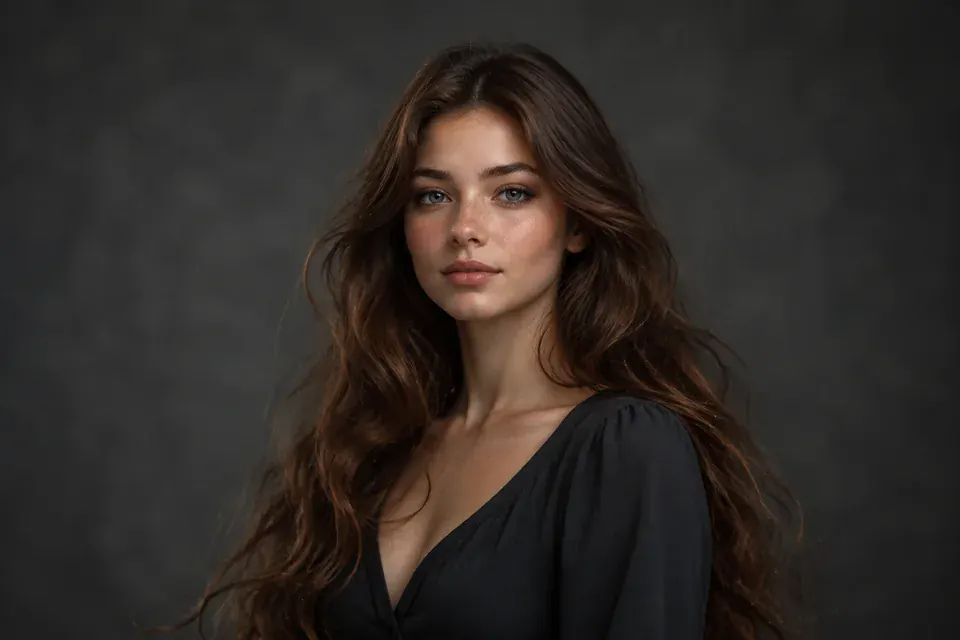
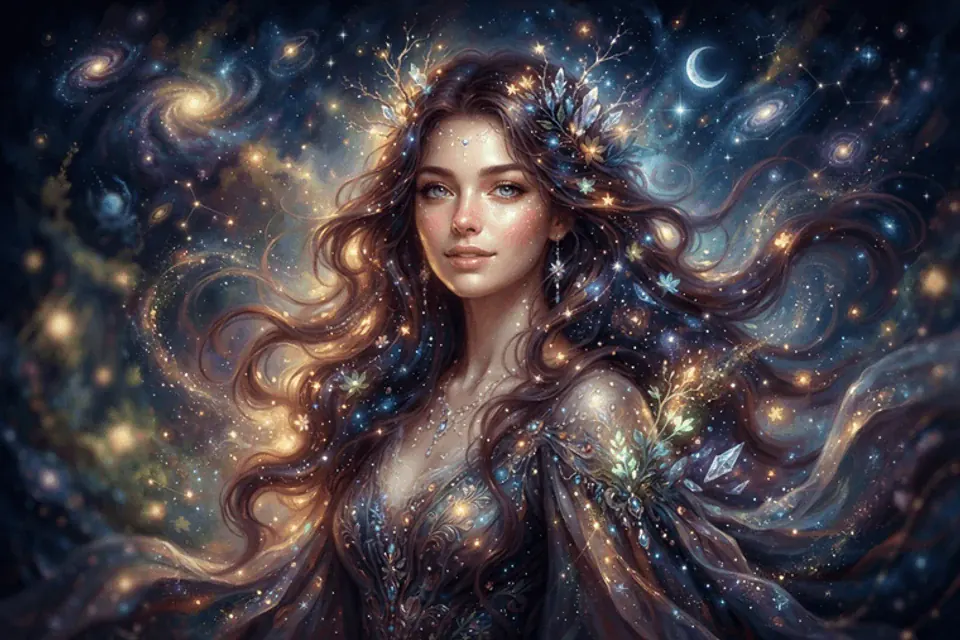
Make several campaign directions from one brief, then generate the strongest idea in the formats needed for posts, ads, and thumbnails.
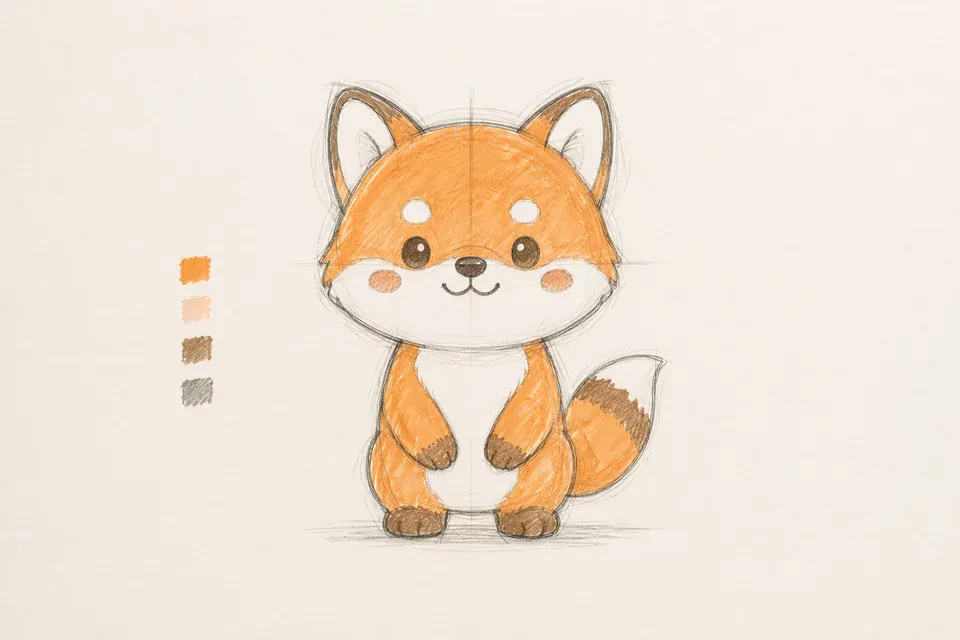
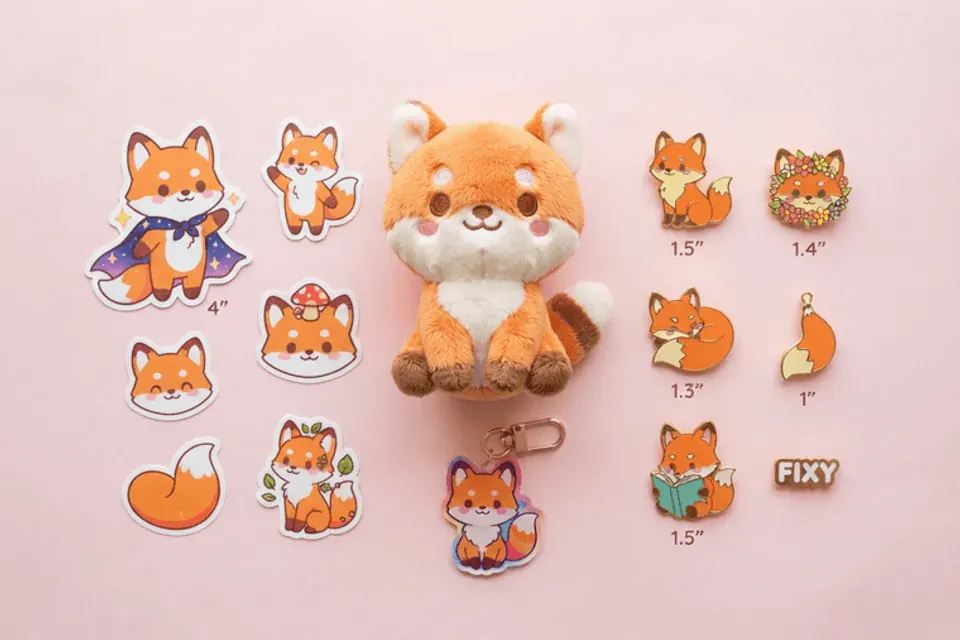
Build product scenes and packaging ideas from a reference image. Fix the still first, then animate the version that is ready for a review or pitch.

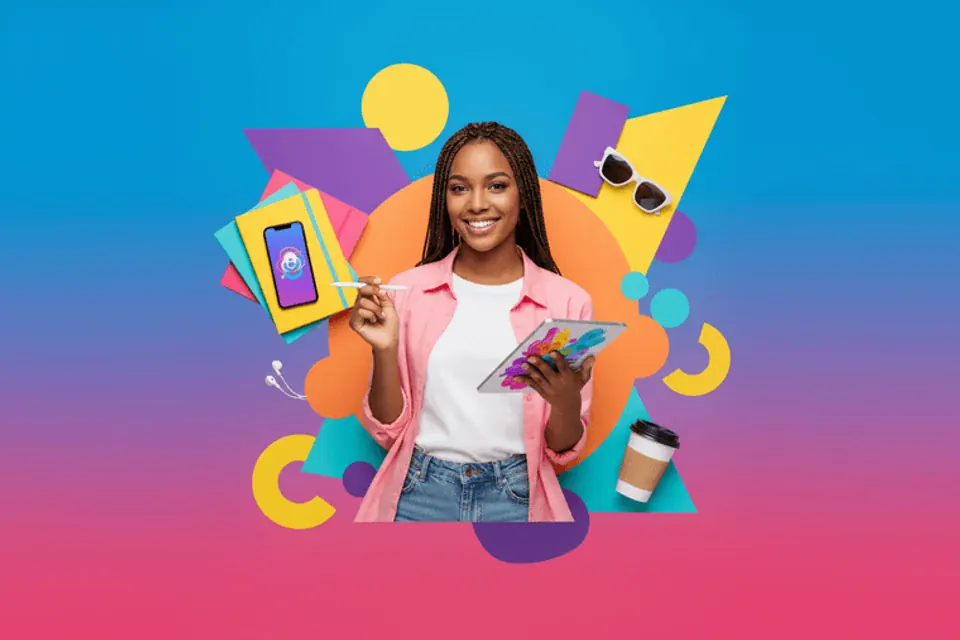
Create keyframes from a script, compare scene options, and animate only the frames that belong in the sequence.
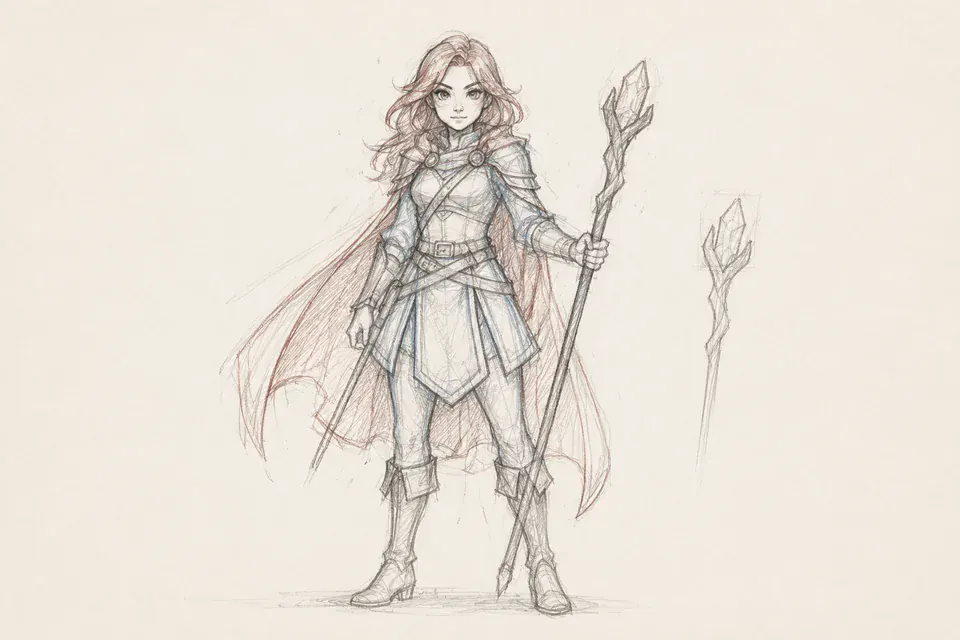
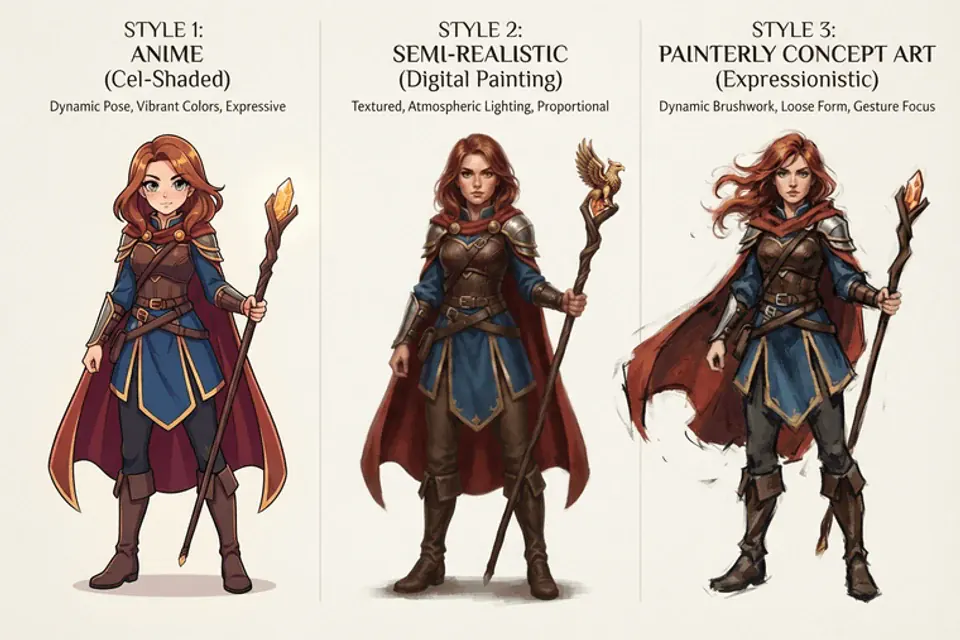
Use the same character or style reference across variations. References can reduce drift, but no model guarantees a perfectly identical face, outfit, or object every time.
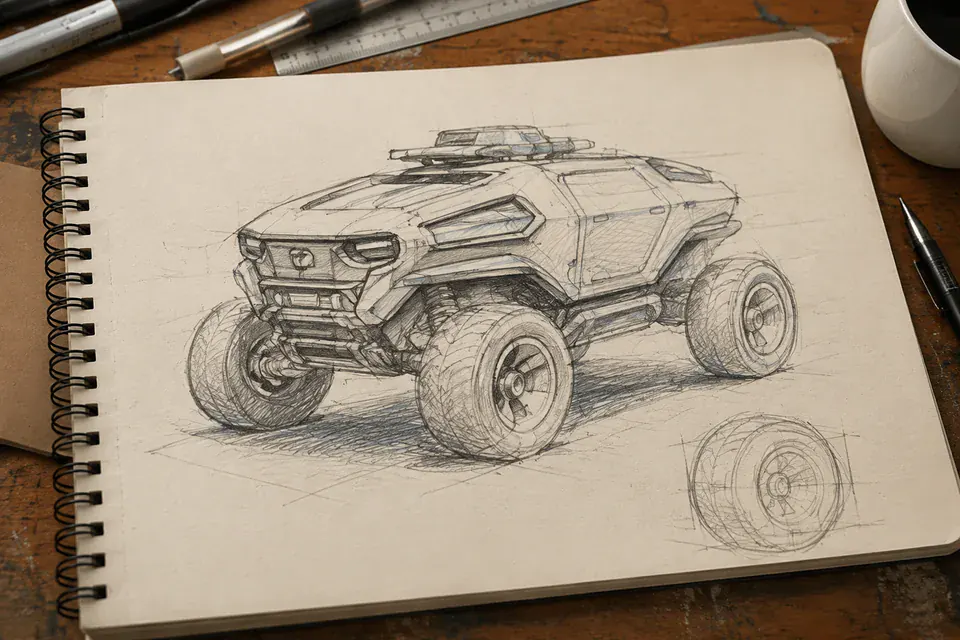
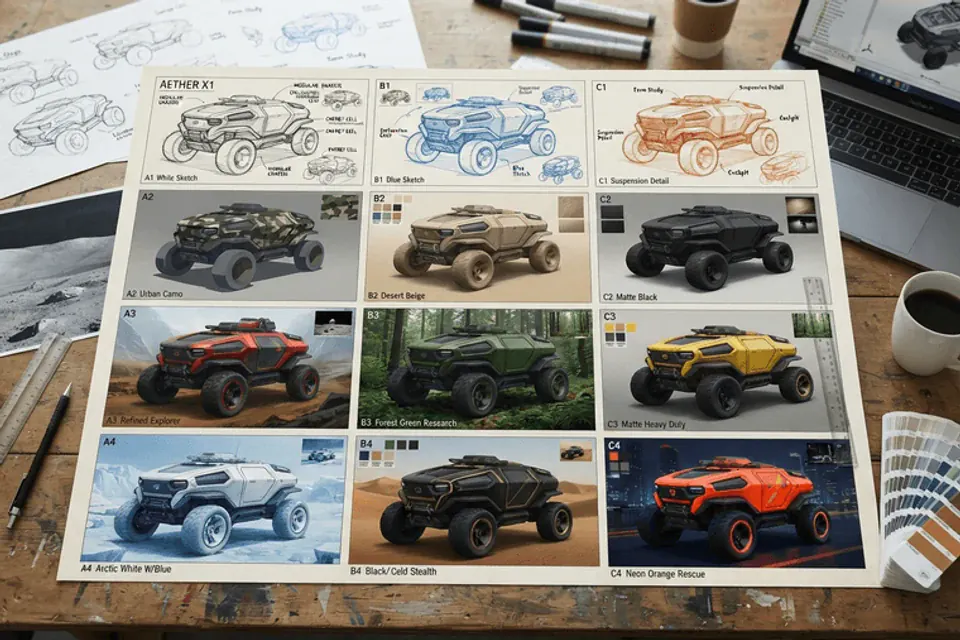
Try illustrations, cinematic frames, unusual remixes, and image-to-video experiments without learning a node graph or installing a local model.
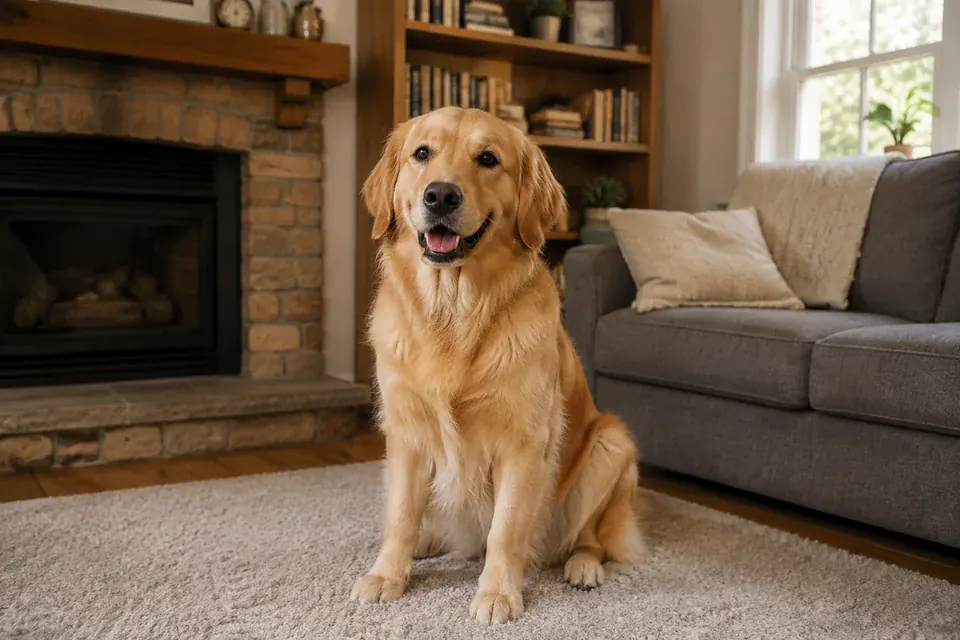
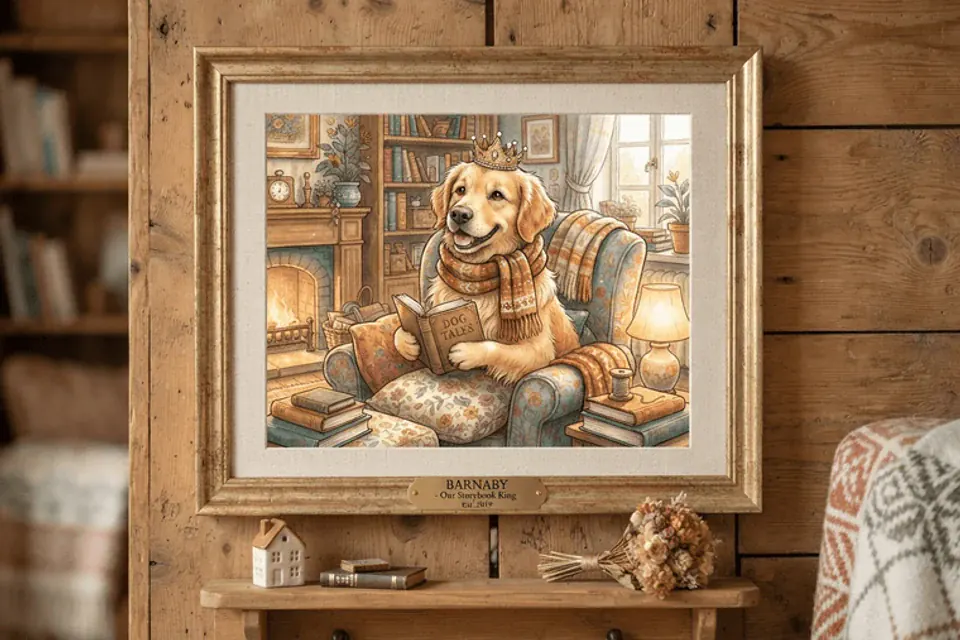
Restyle a pet, portrait, trip photo, or old memory. Keep editing the image, or turn the result into a short clip to share.
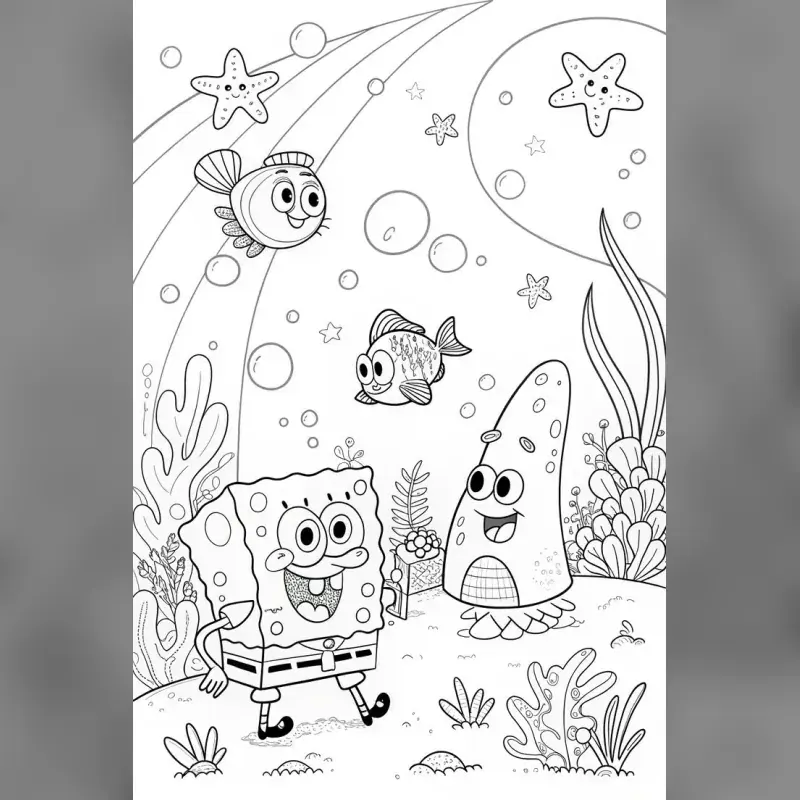
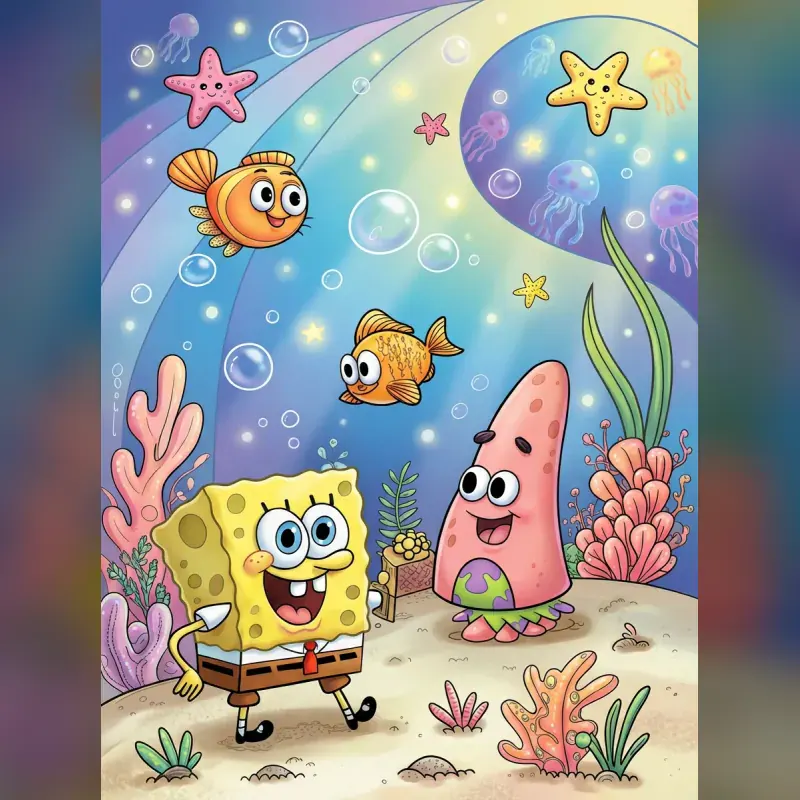
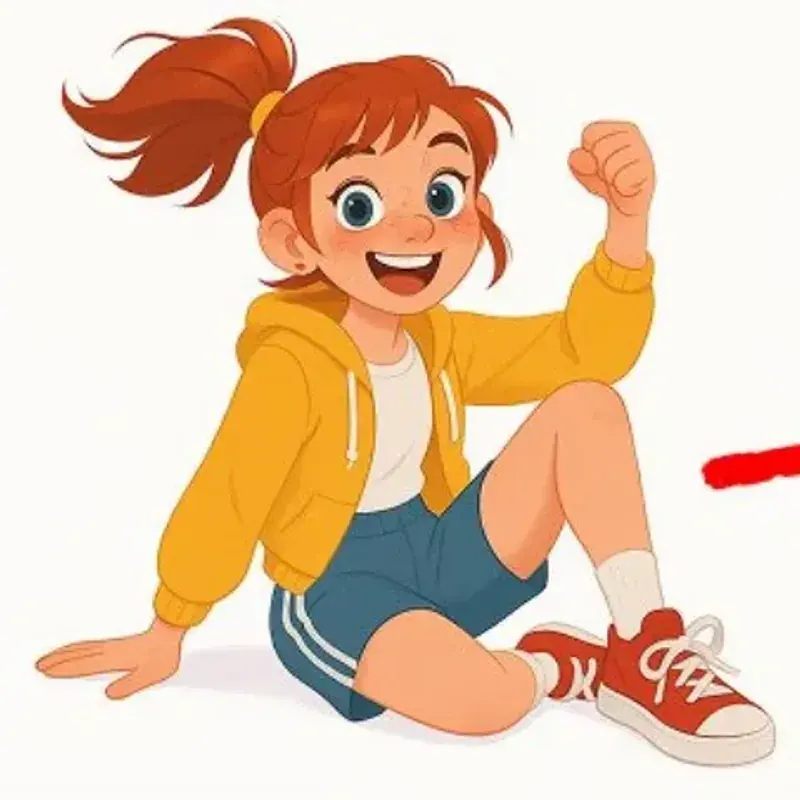
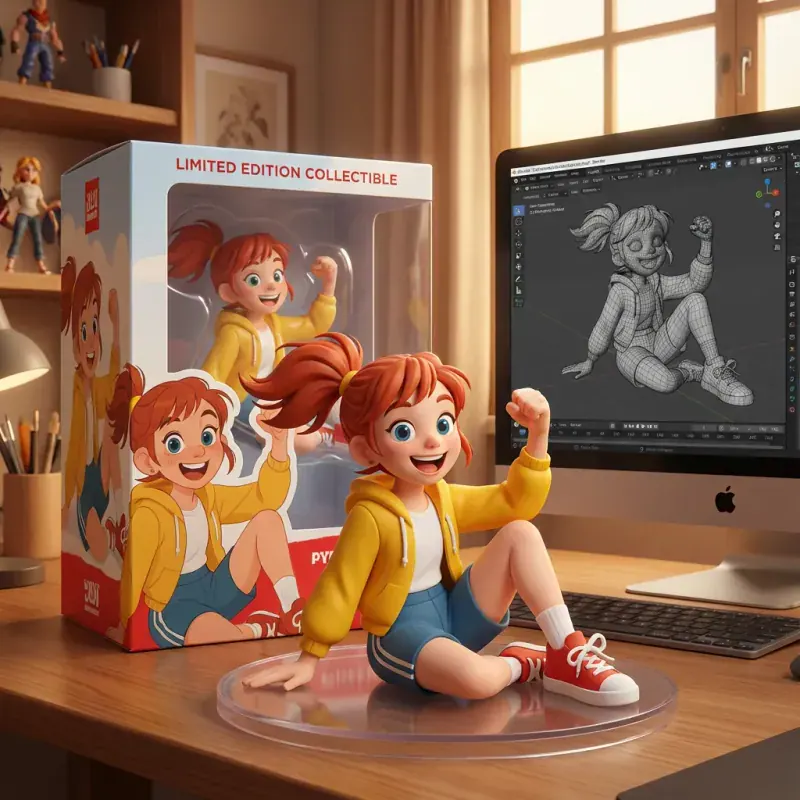
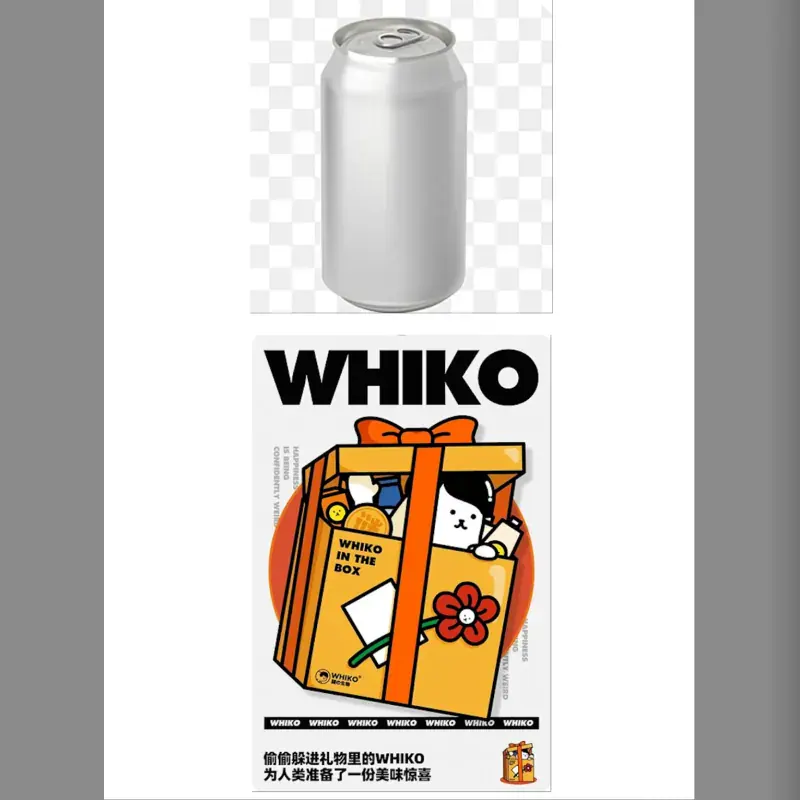
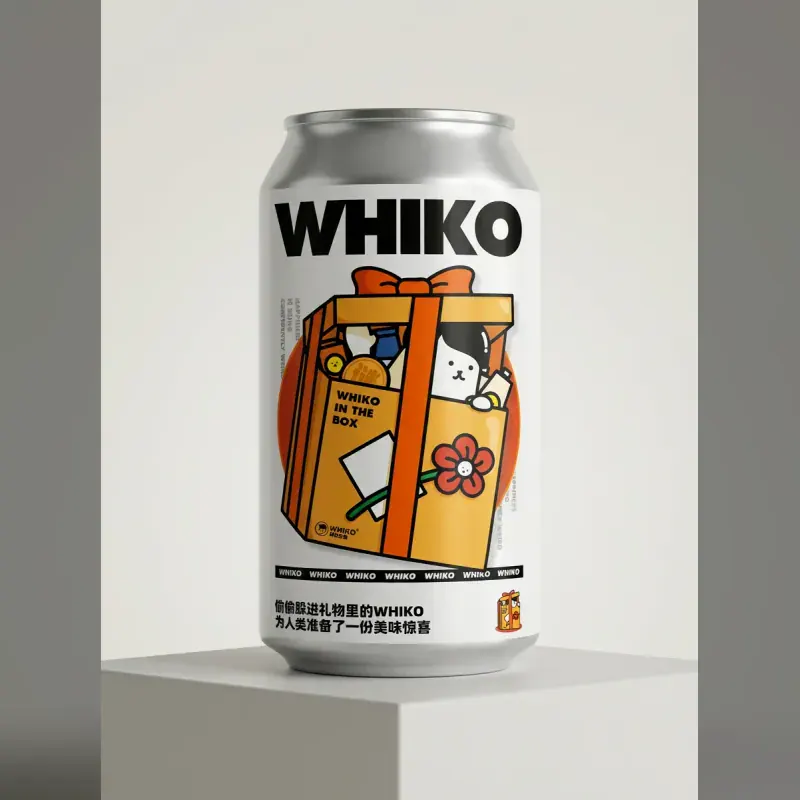
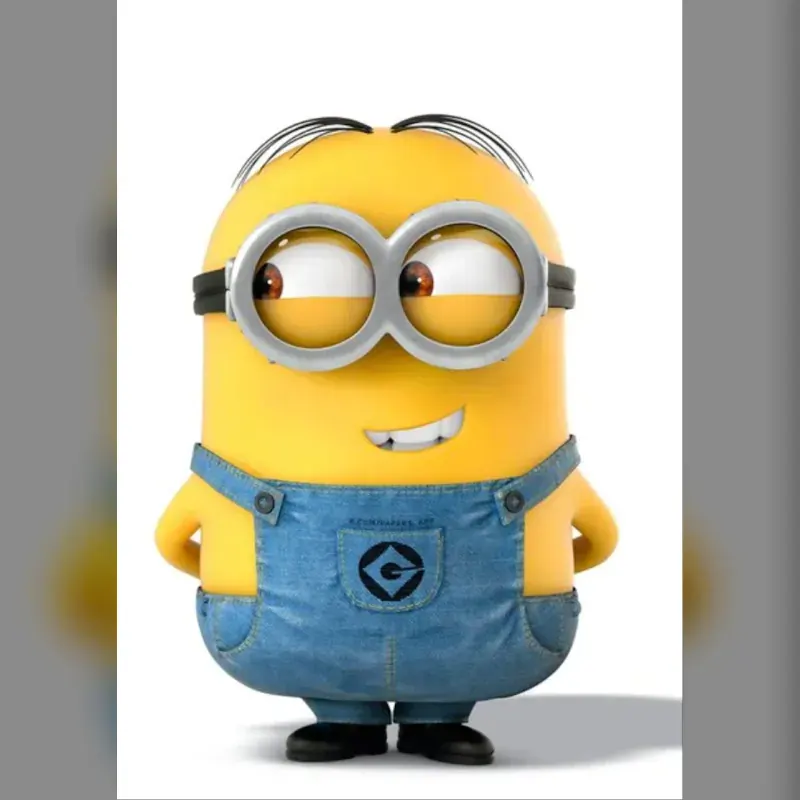
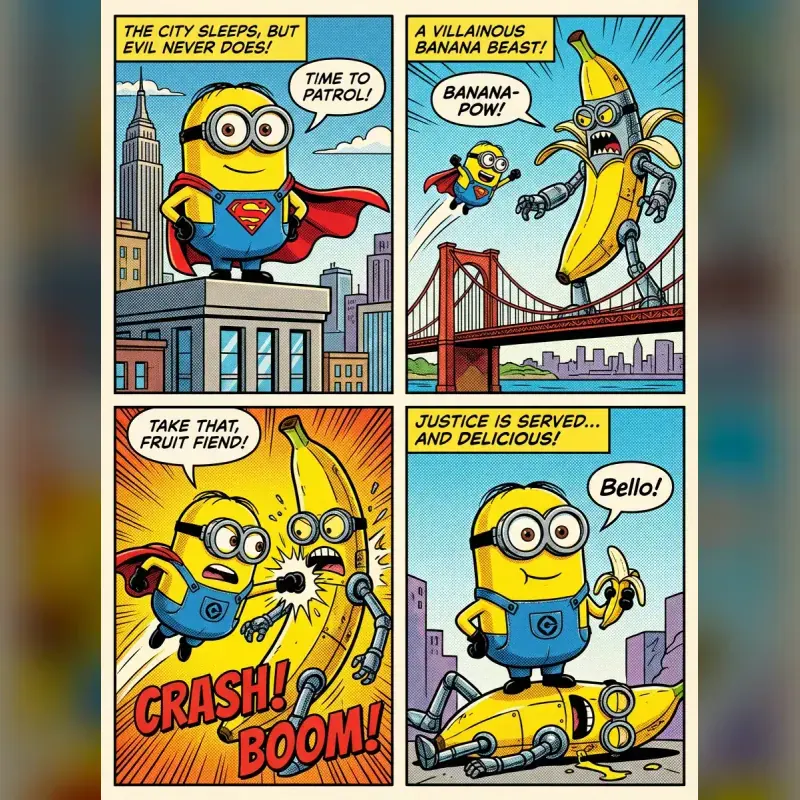
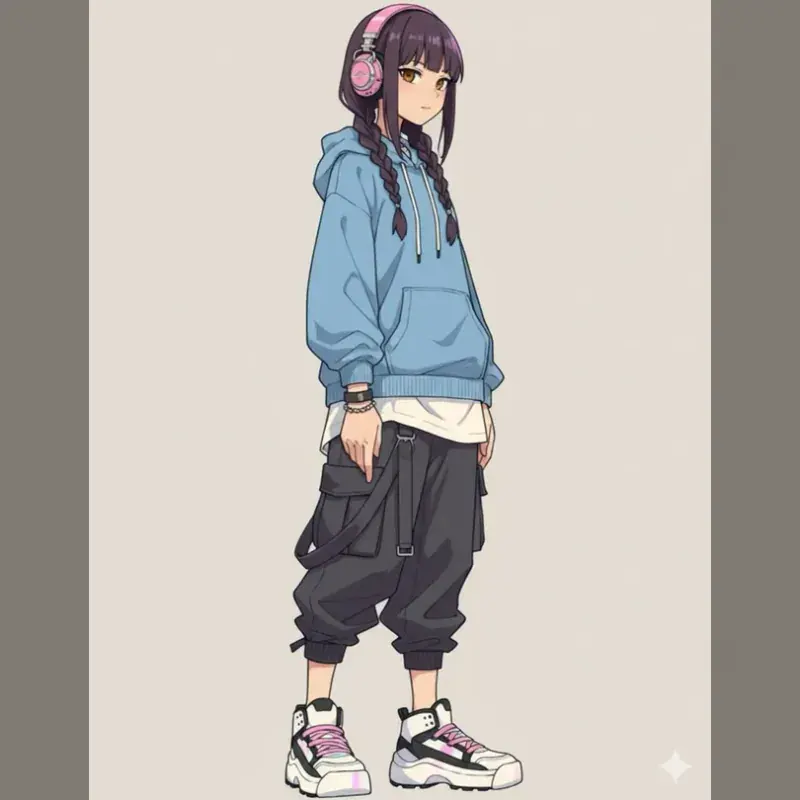
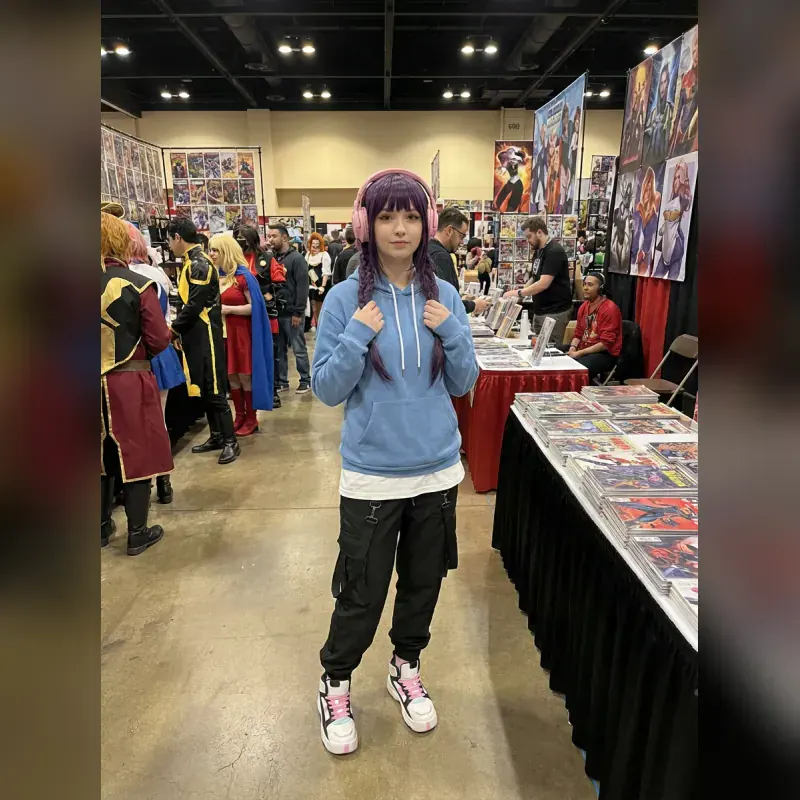
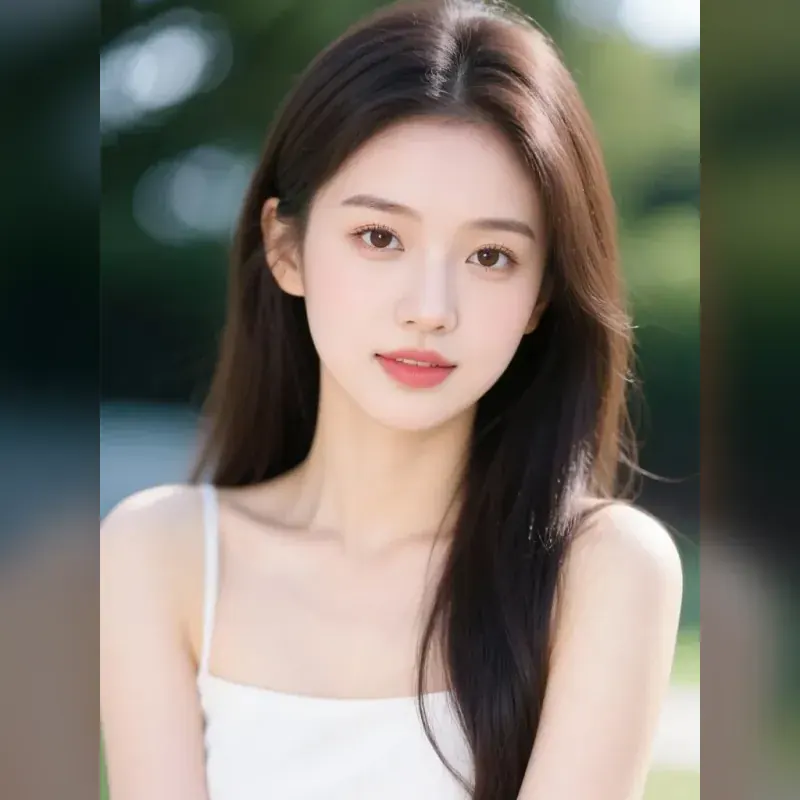
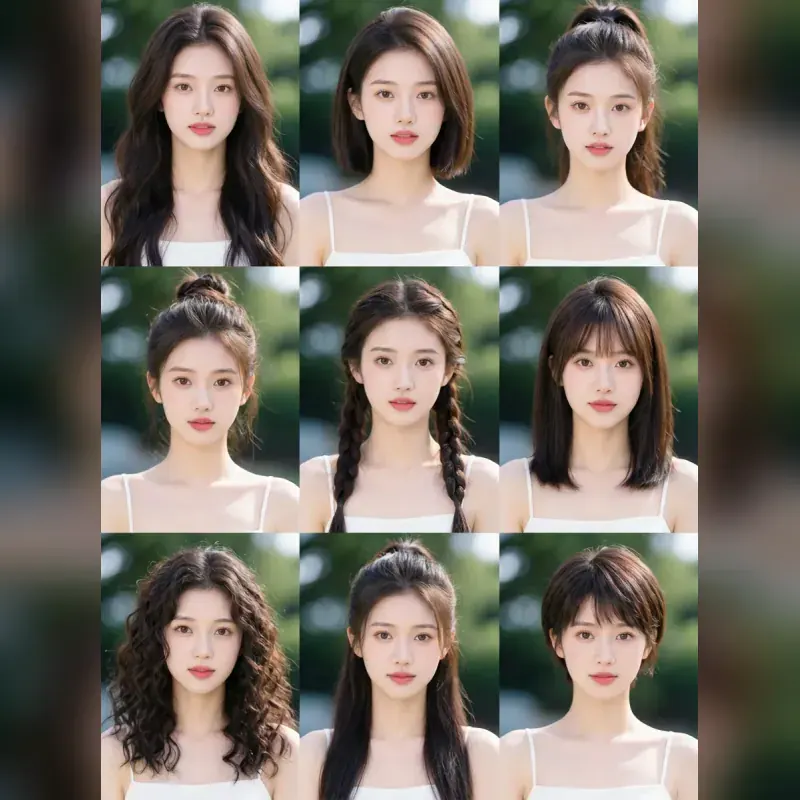
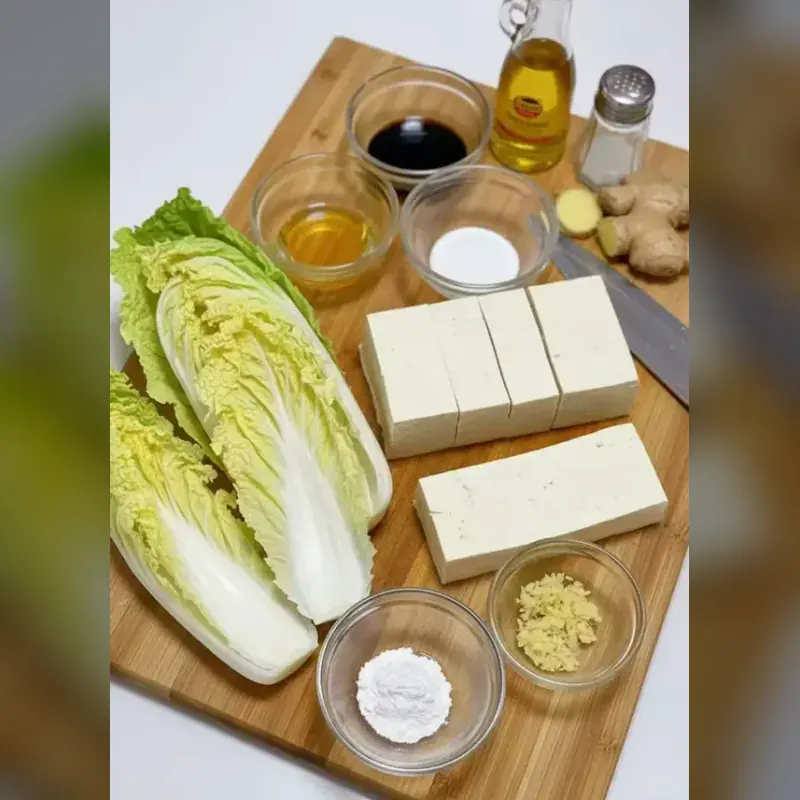
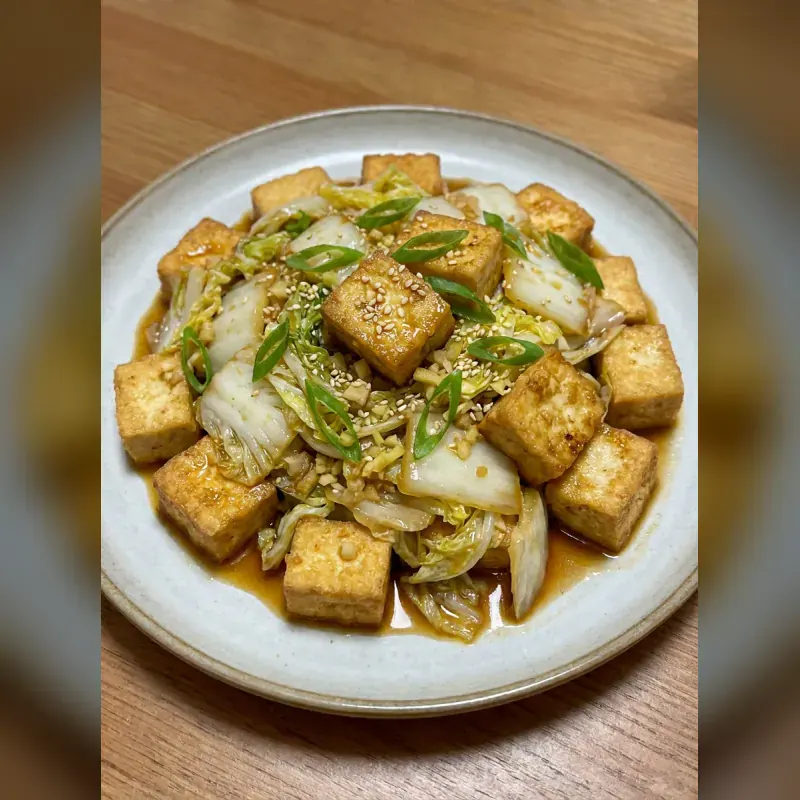
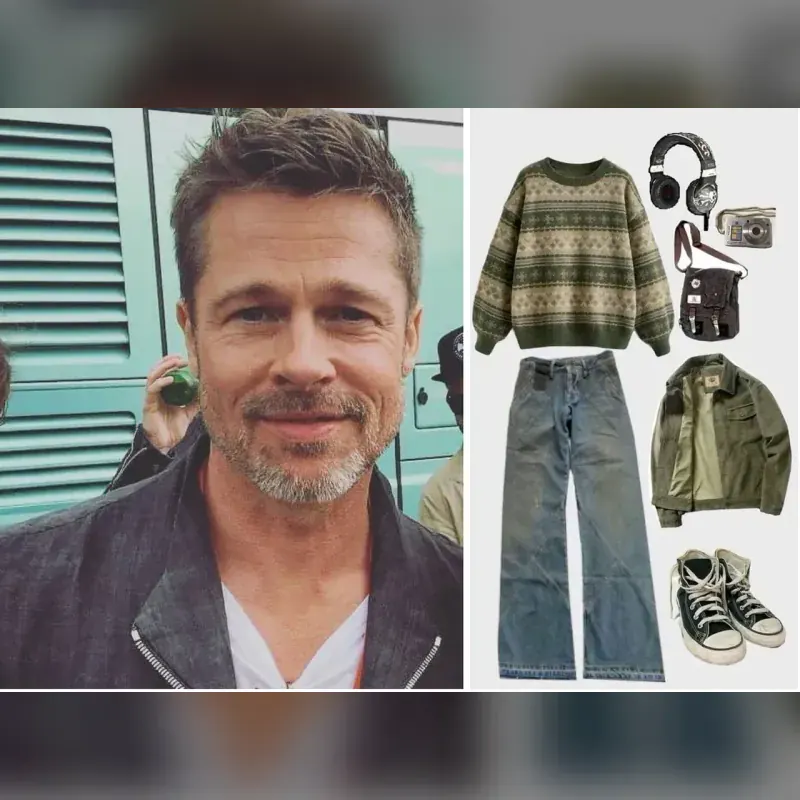
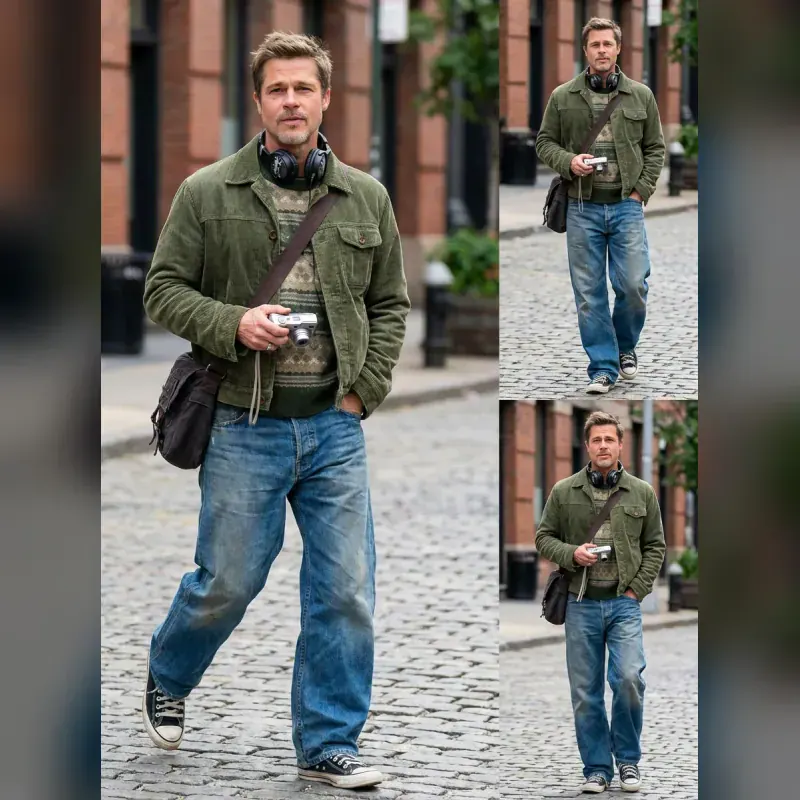
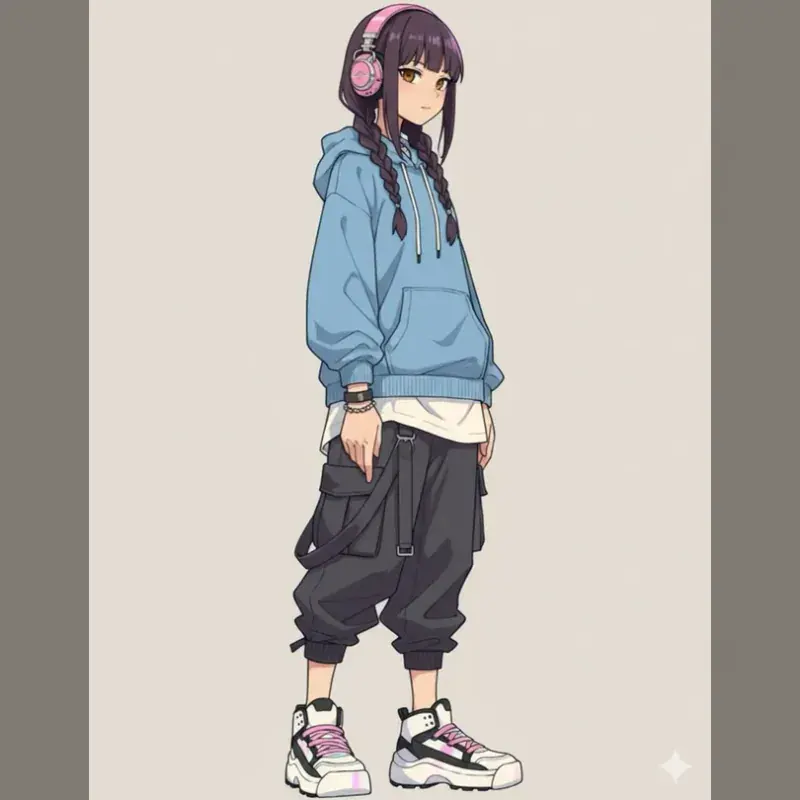
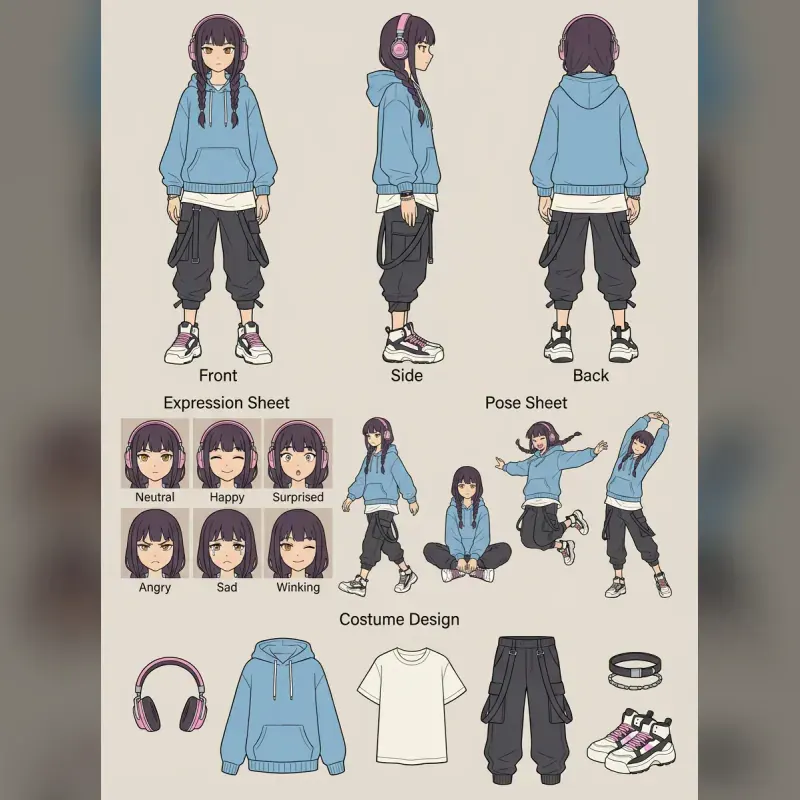
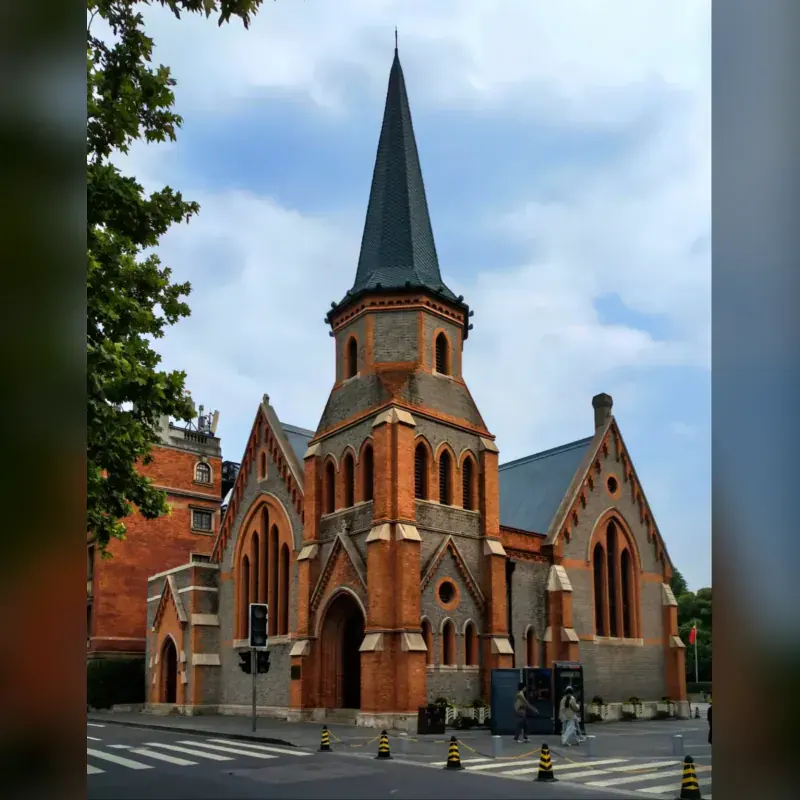
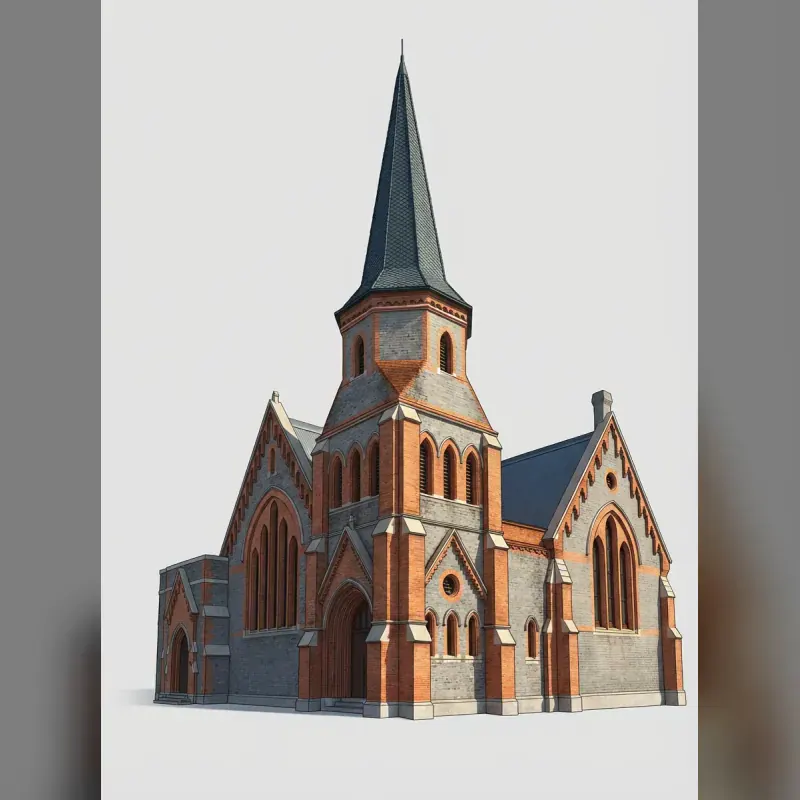
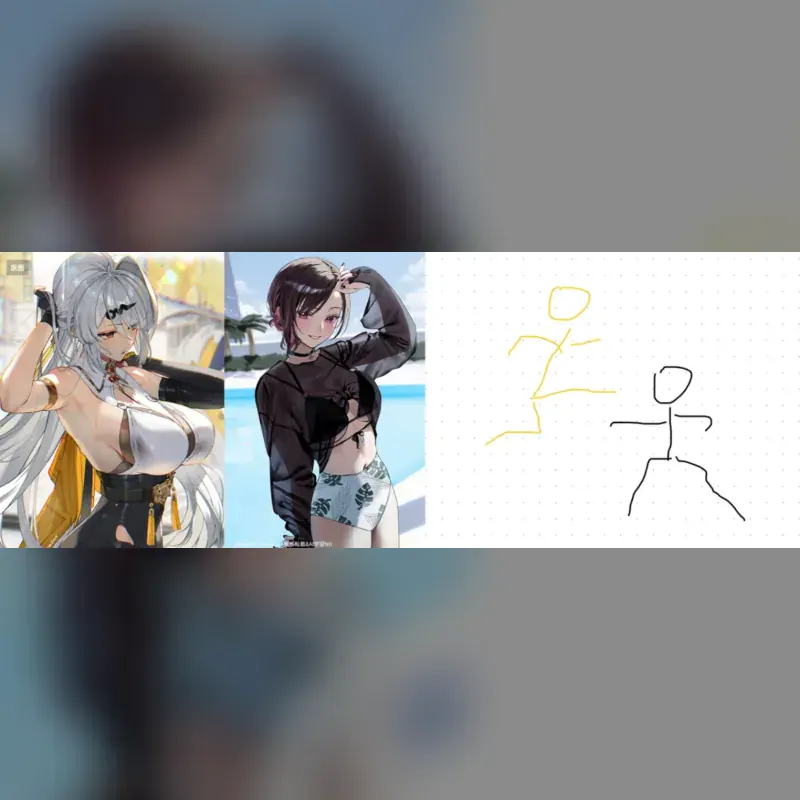
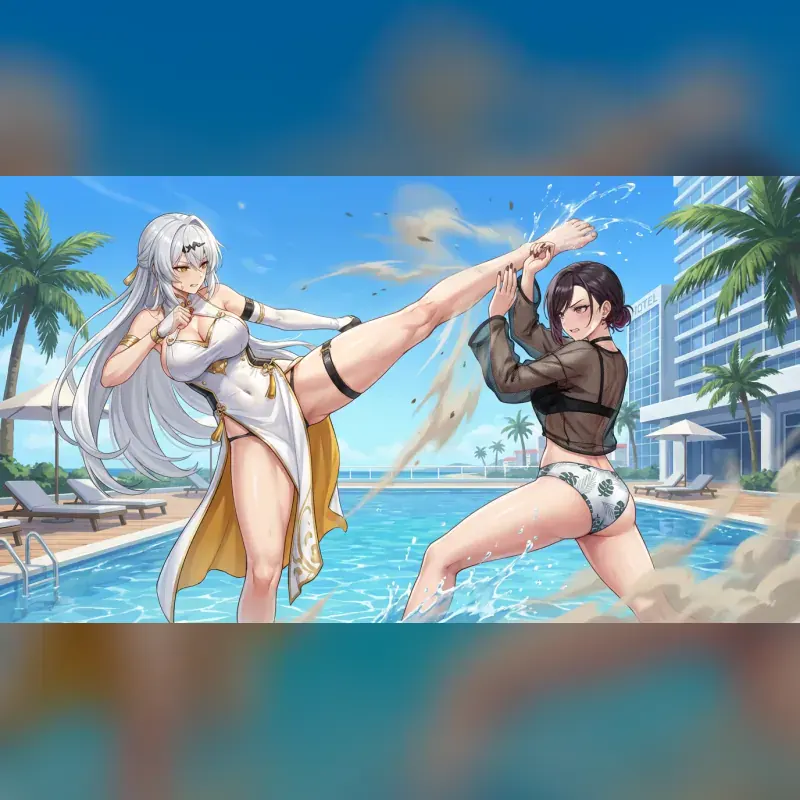
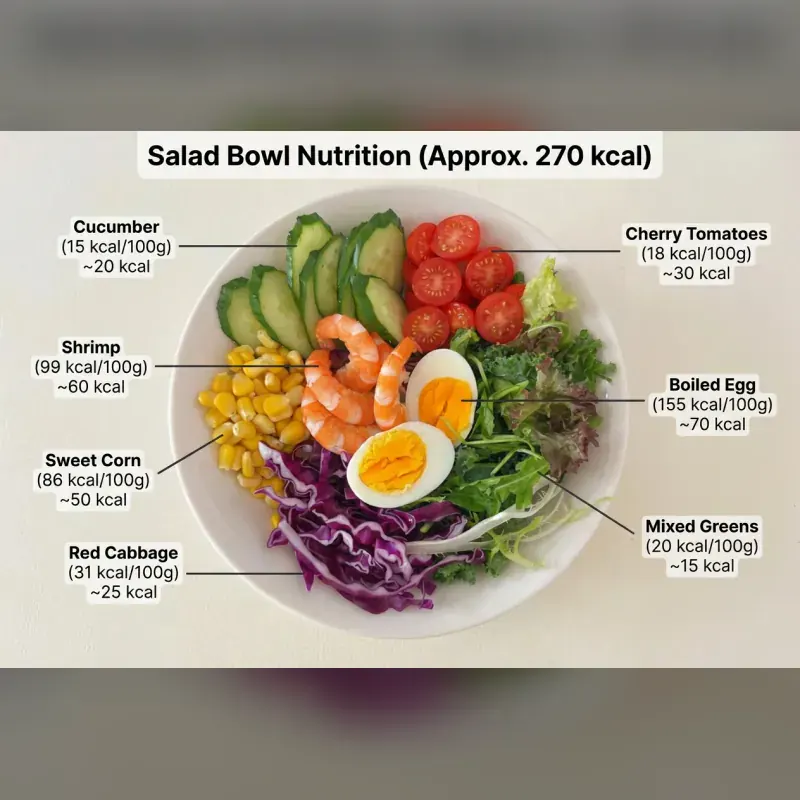
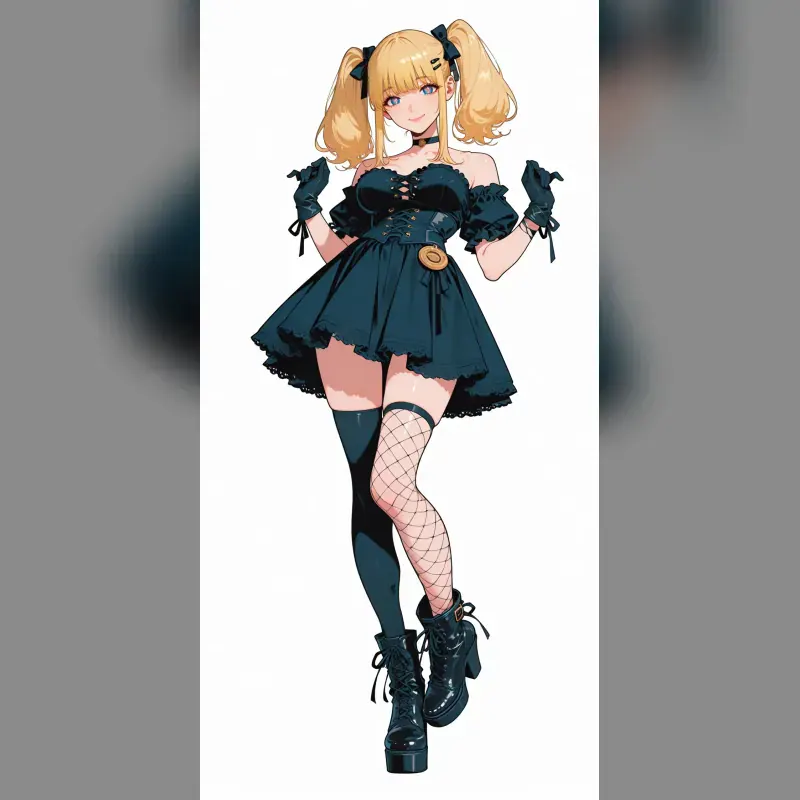
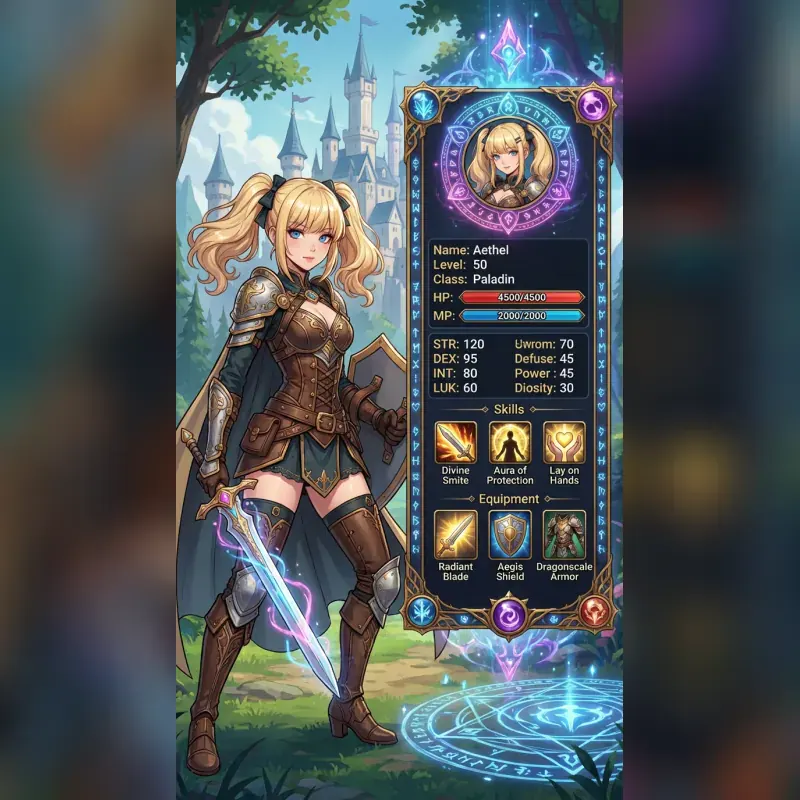
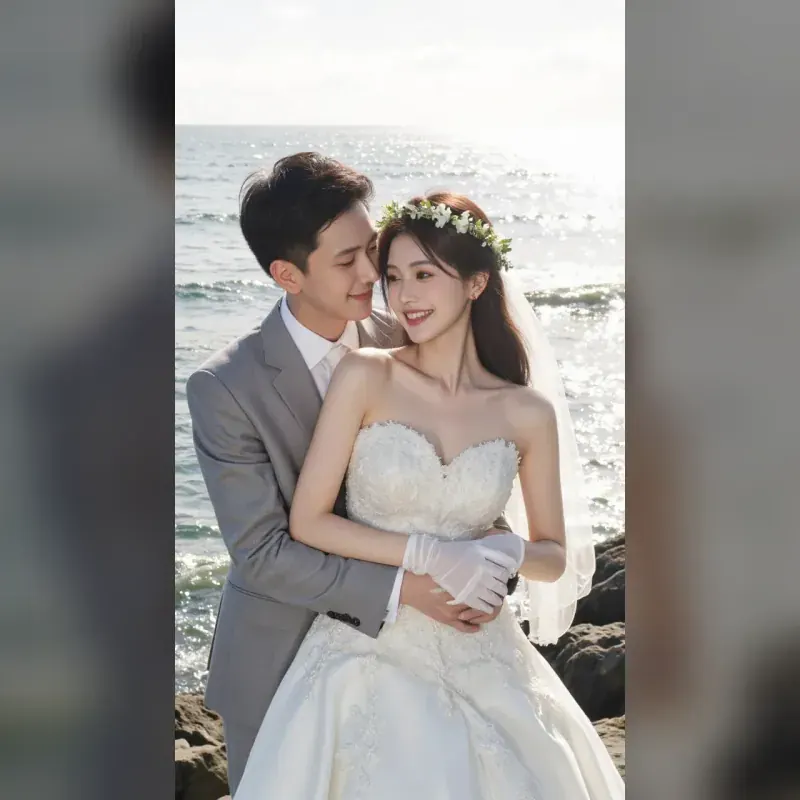
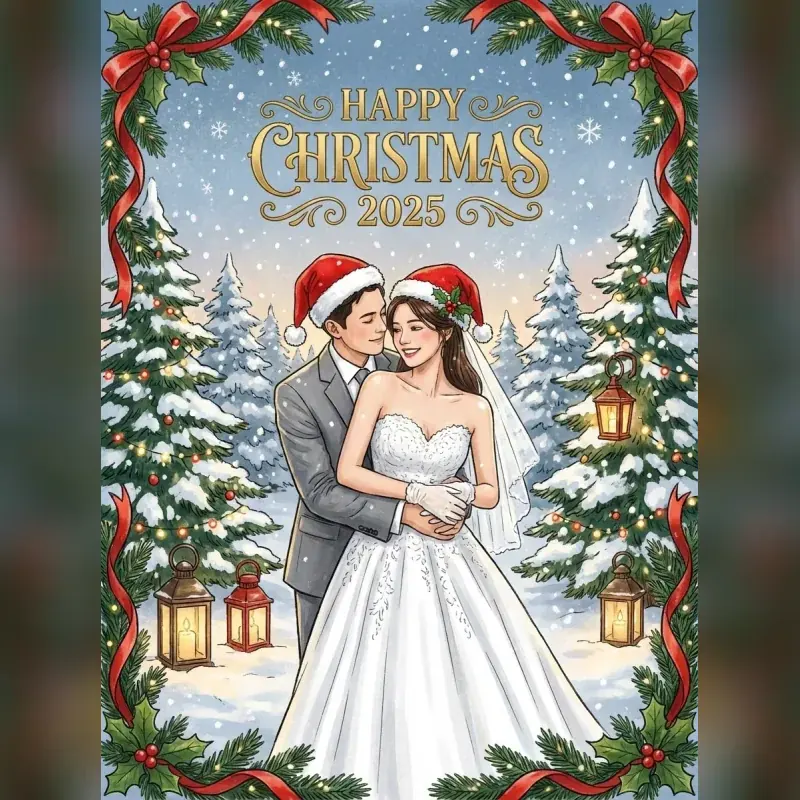
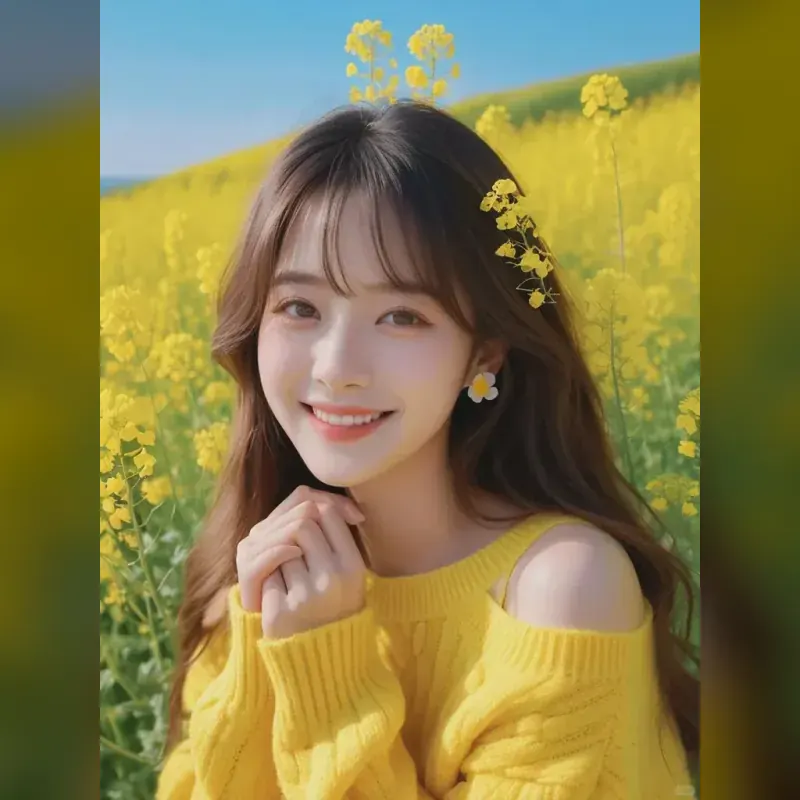
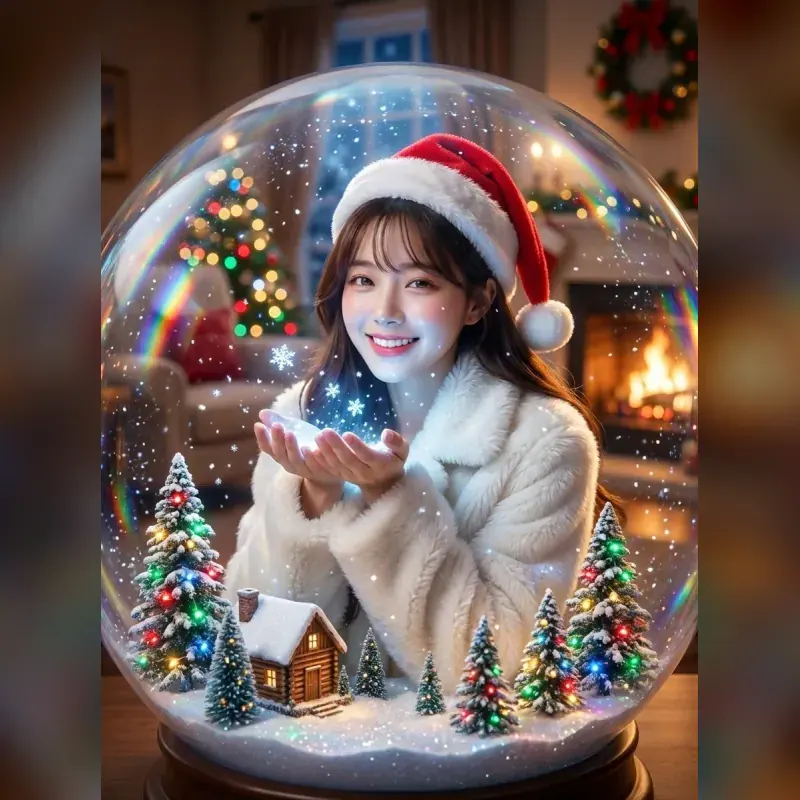
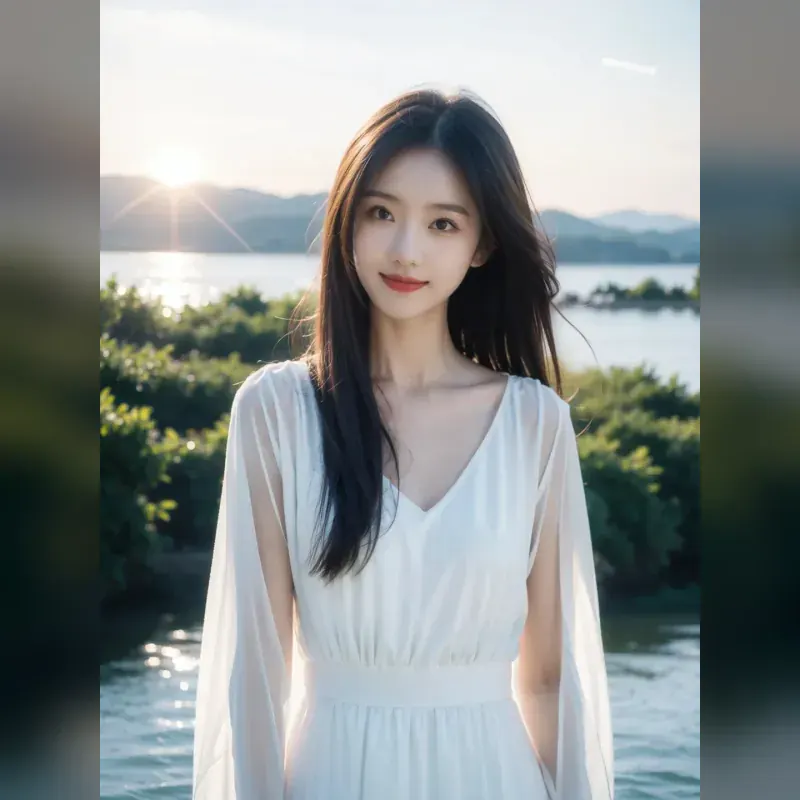
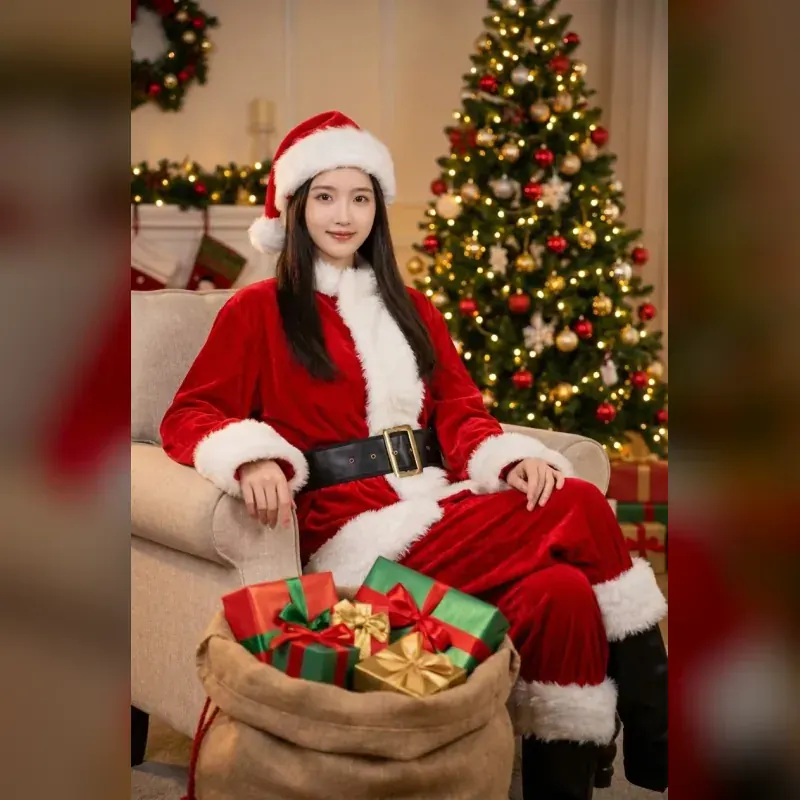
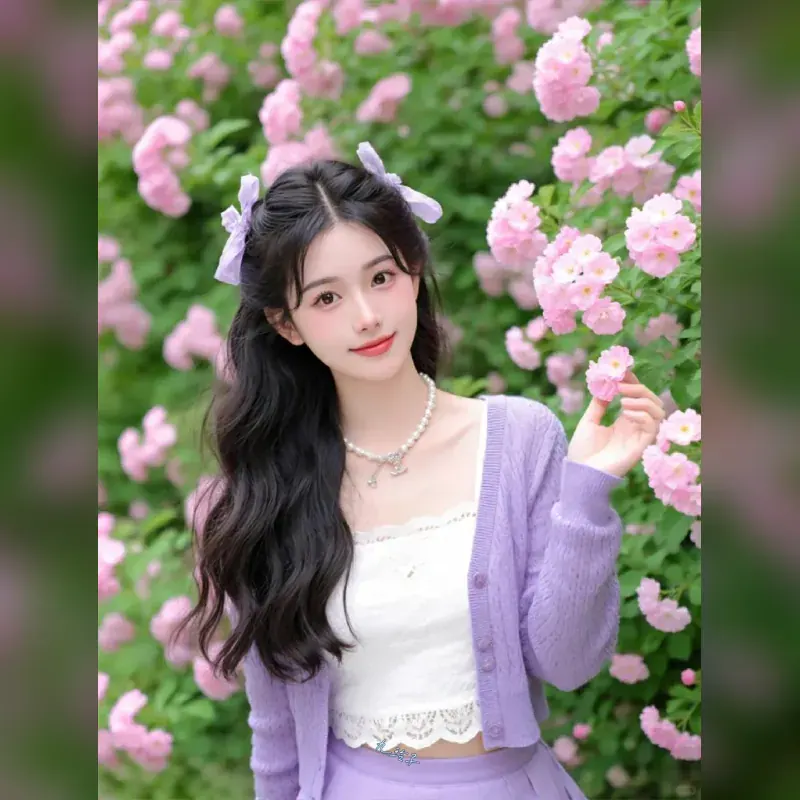
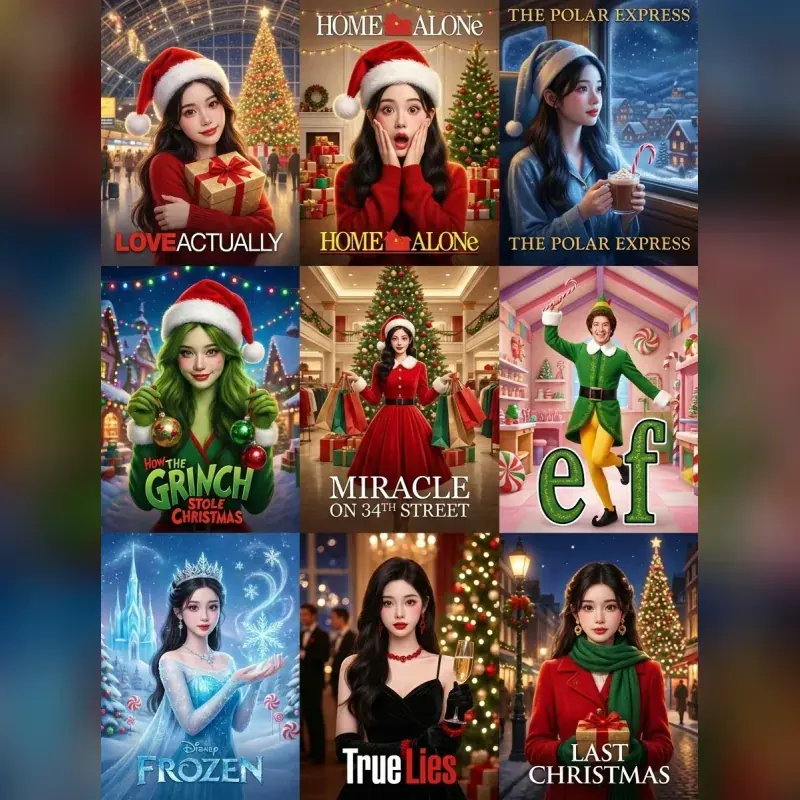
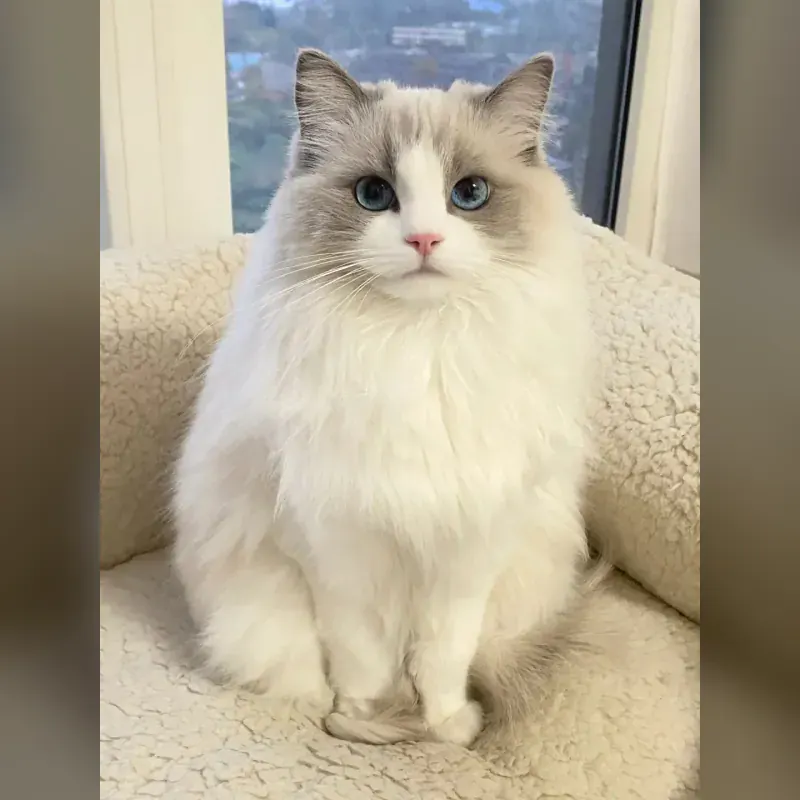
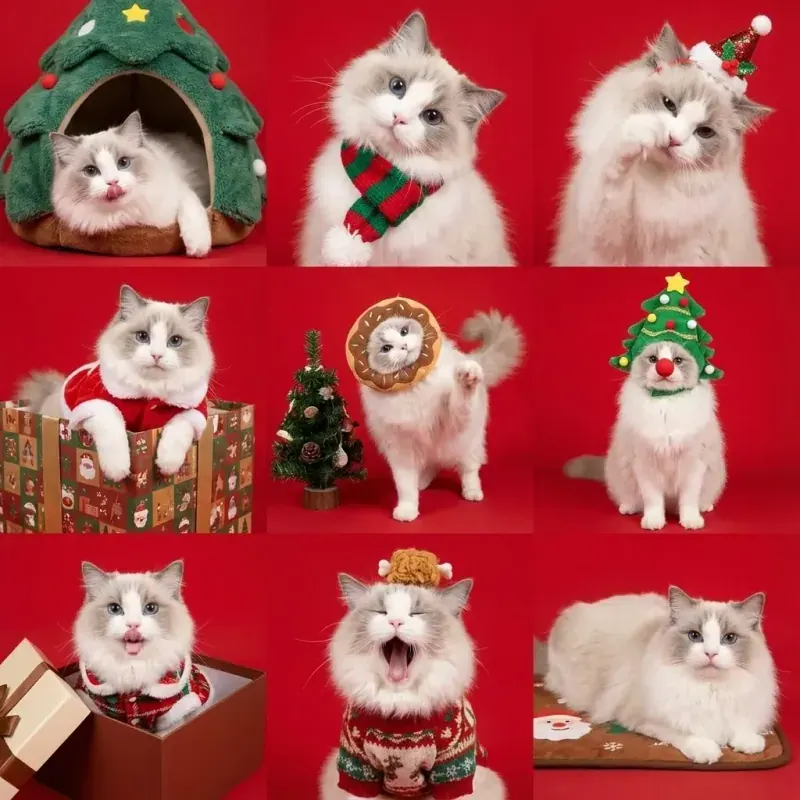
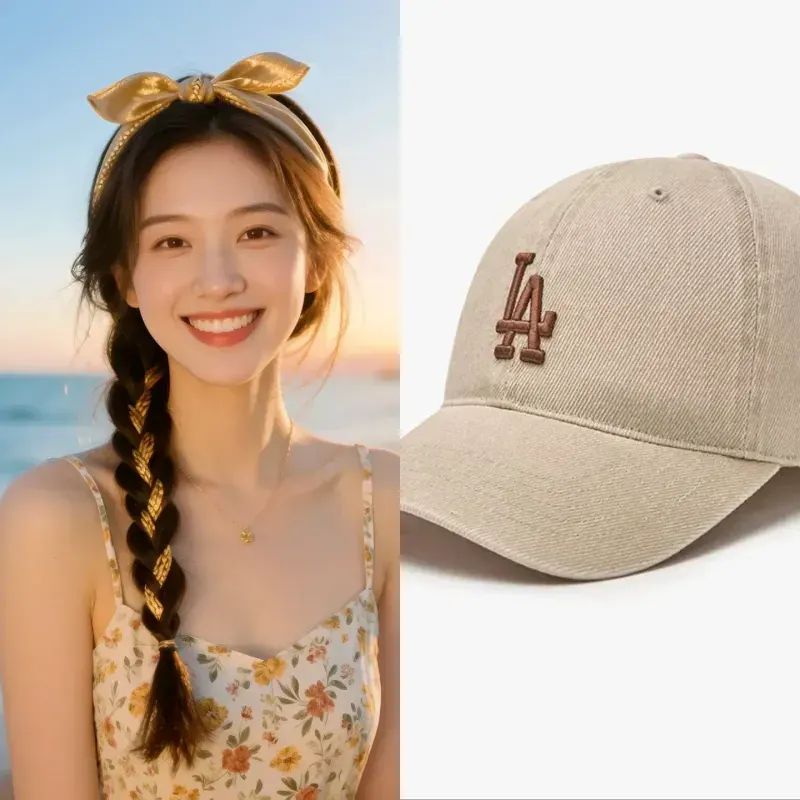
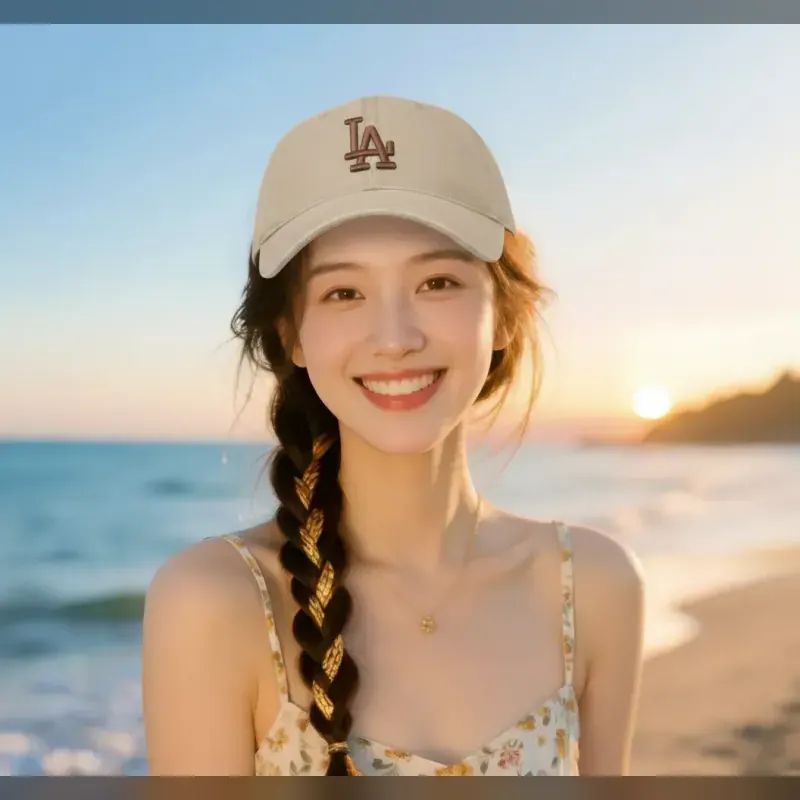
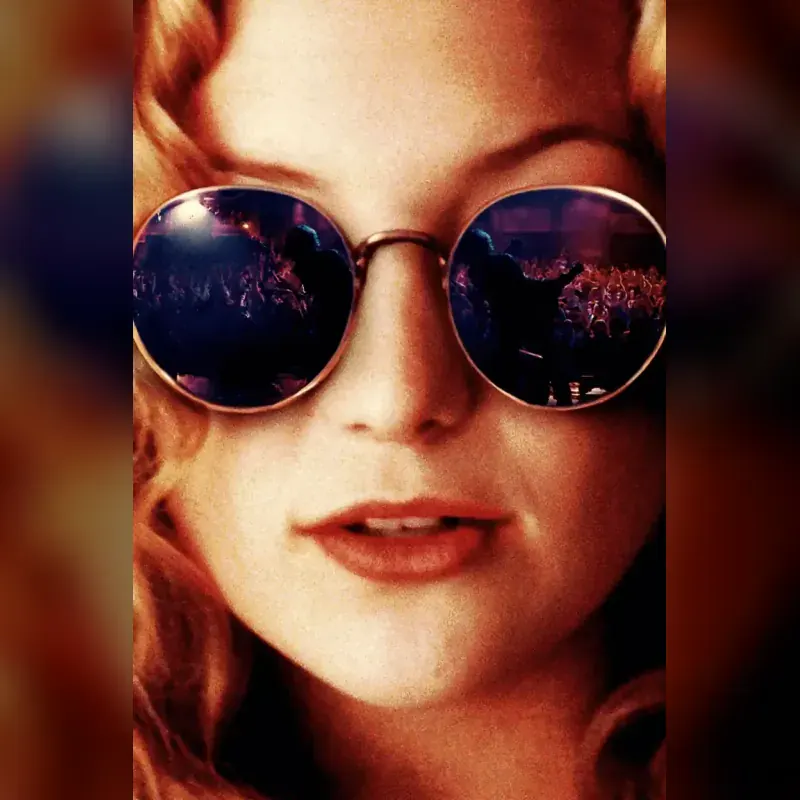
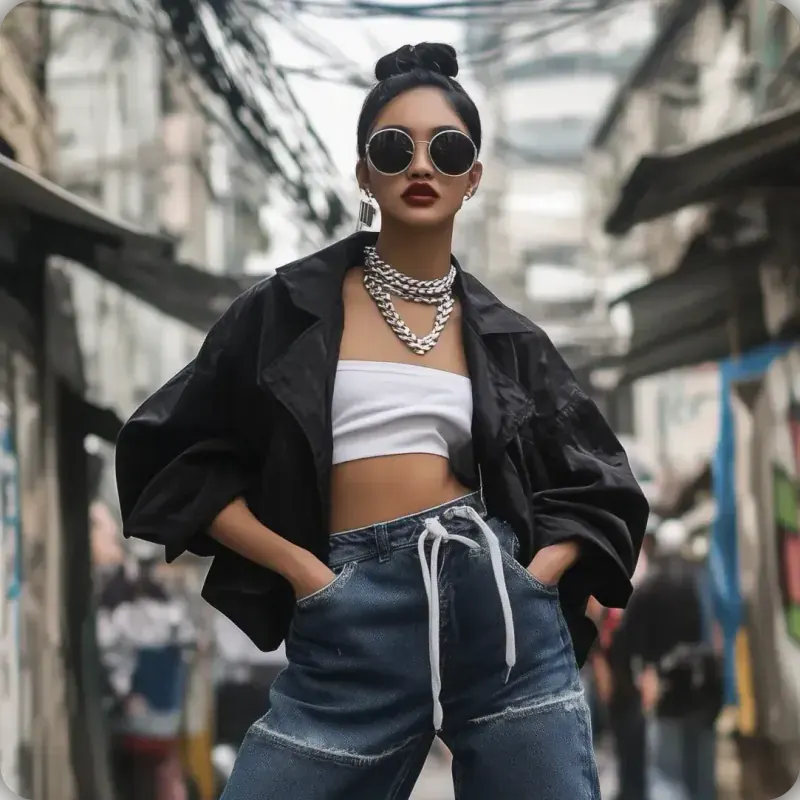
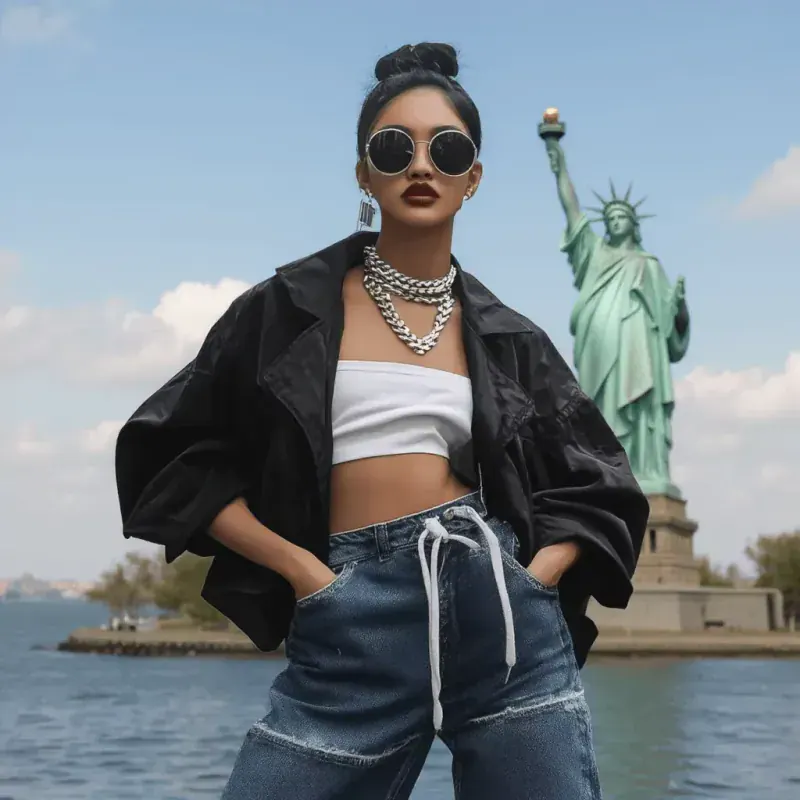
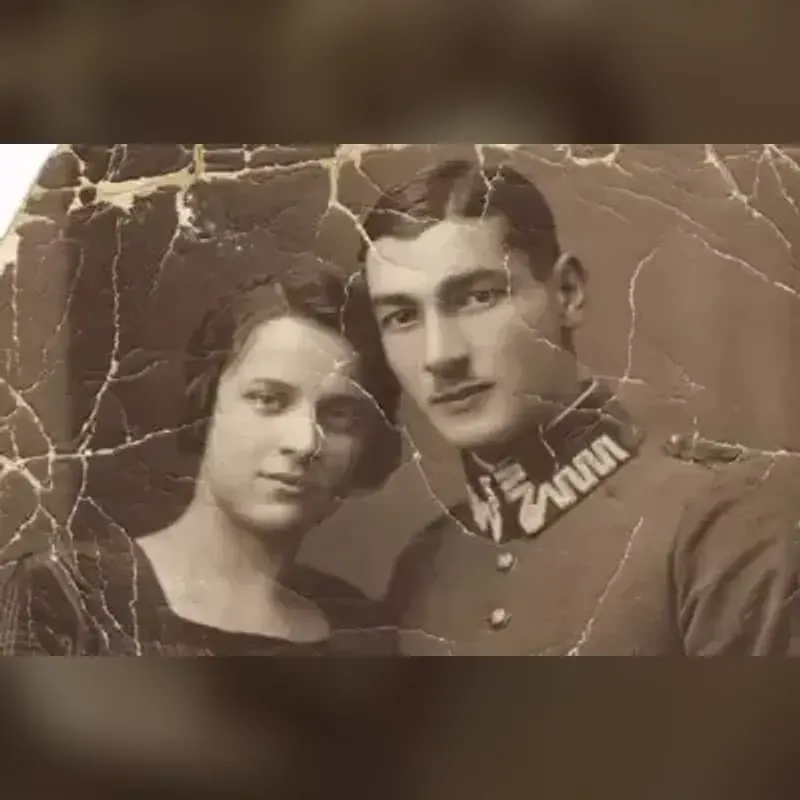
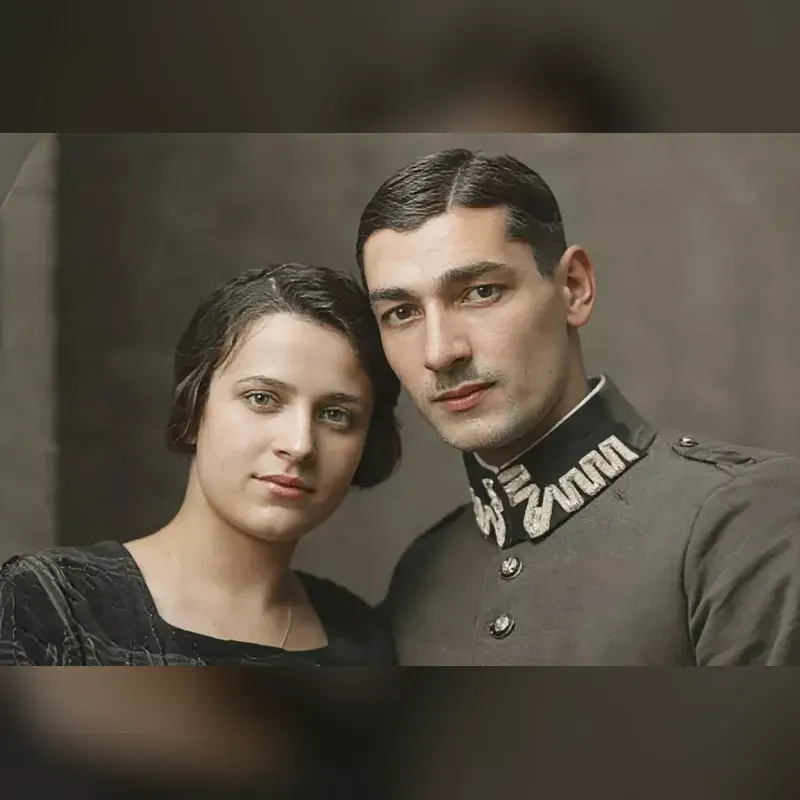
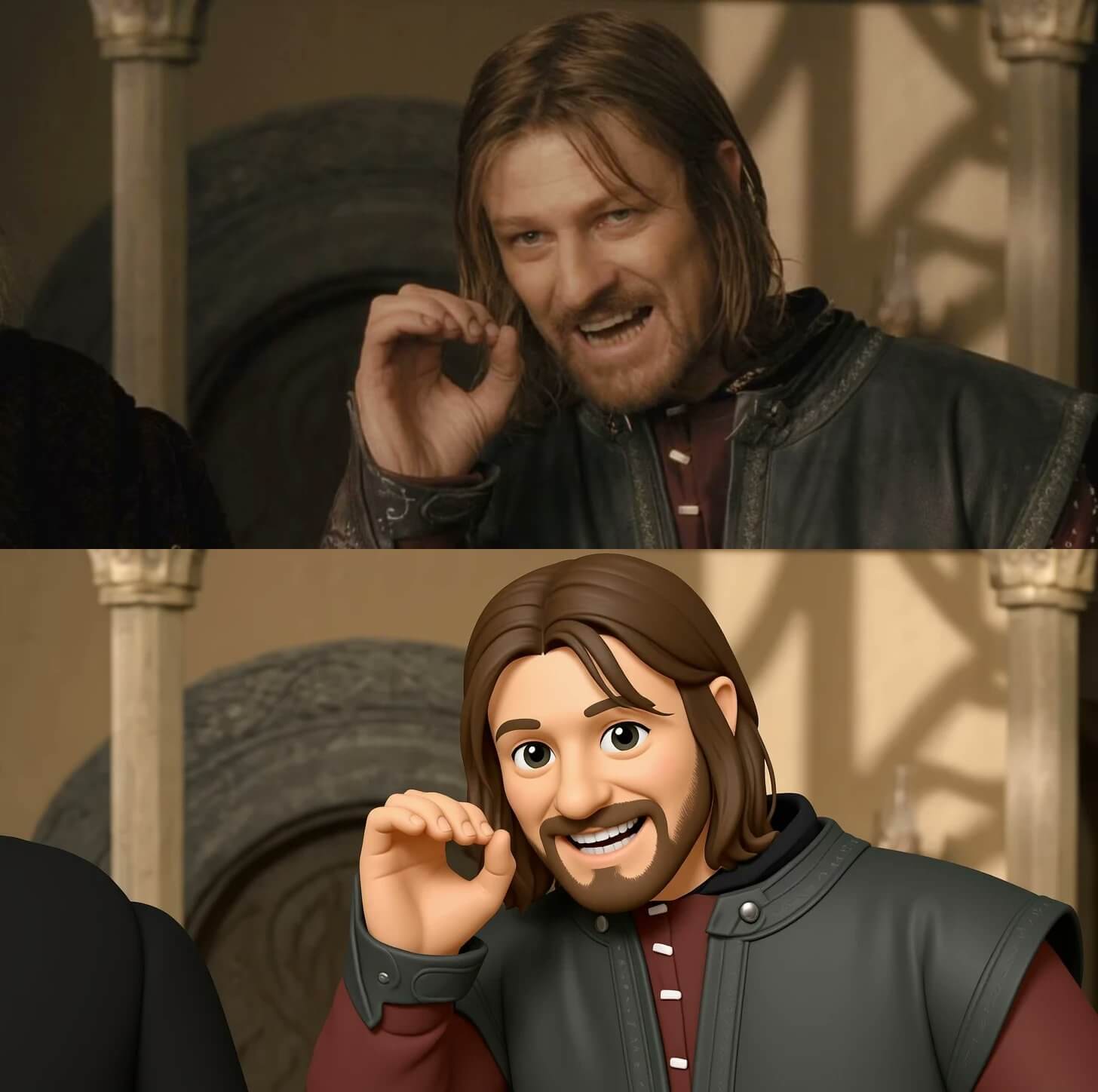
Start wherever the idea is clearest: words, a source image, or both. Wisku AI lets you compare results, put the best one back into the editor, and animate the still you decide to keep.
The hard part is often not the first generation. It is keeping track of references, versions, and the image you meant to animate. Wisku AI keeps those steps close together.
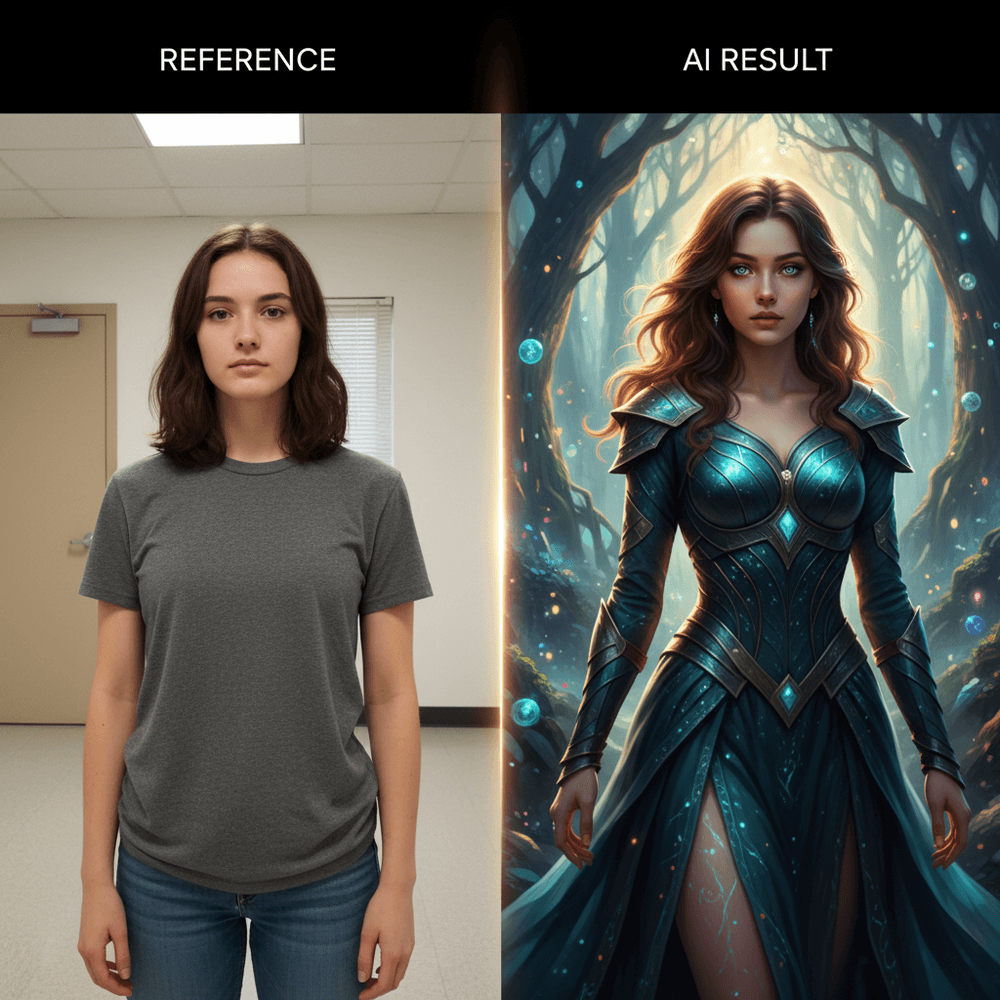
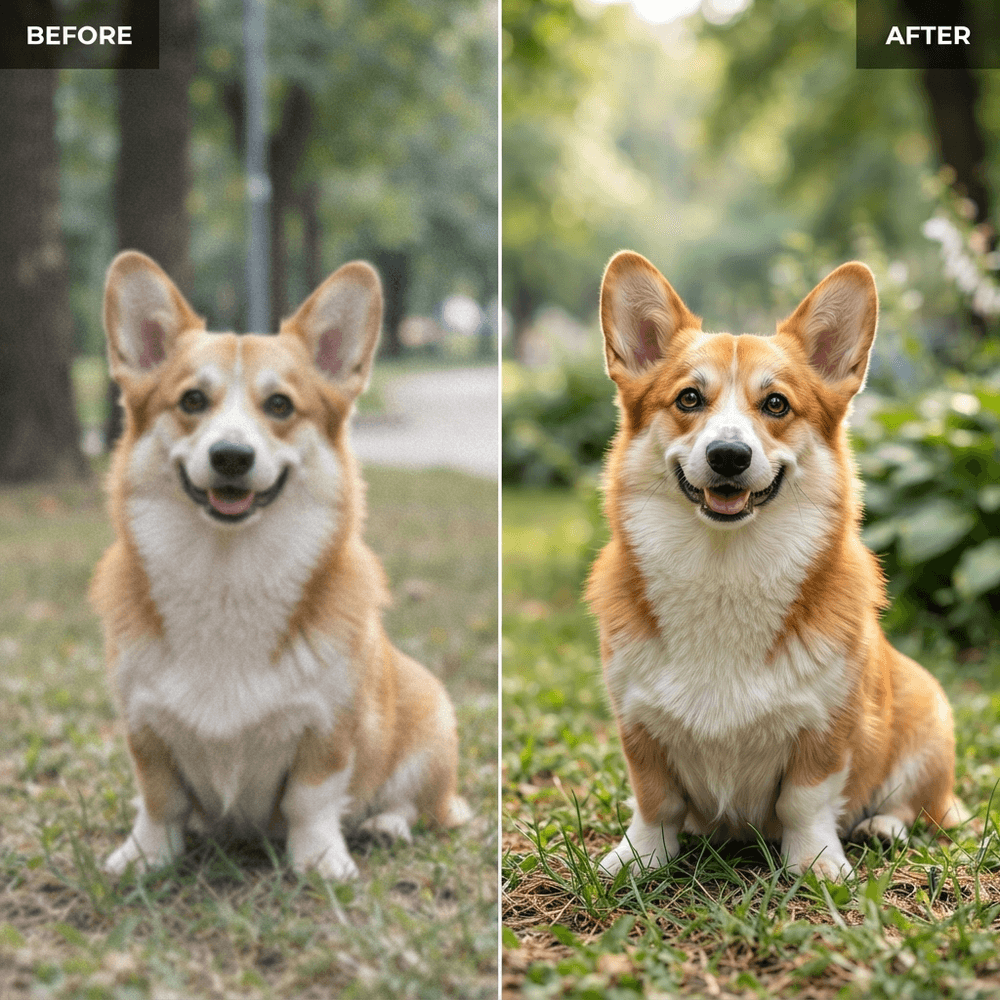
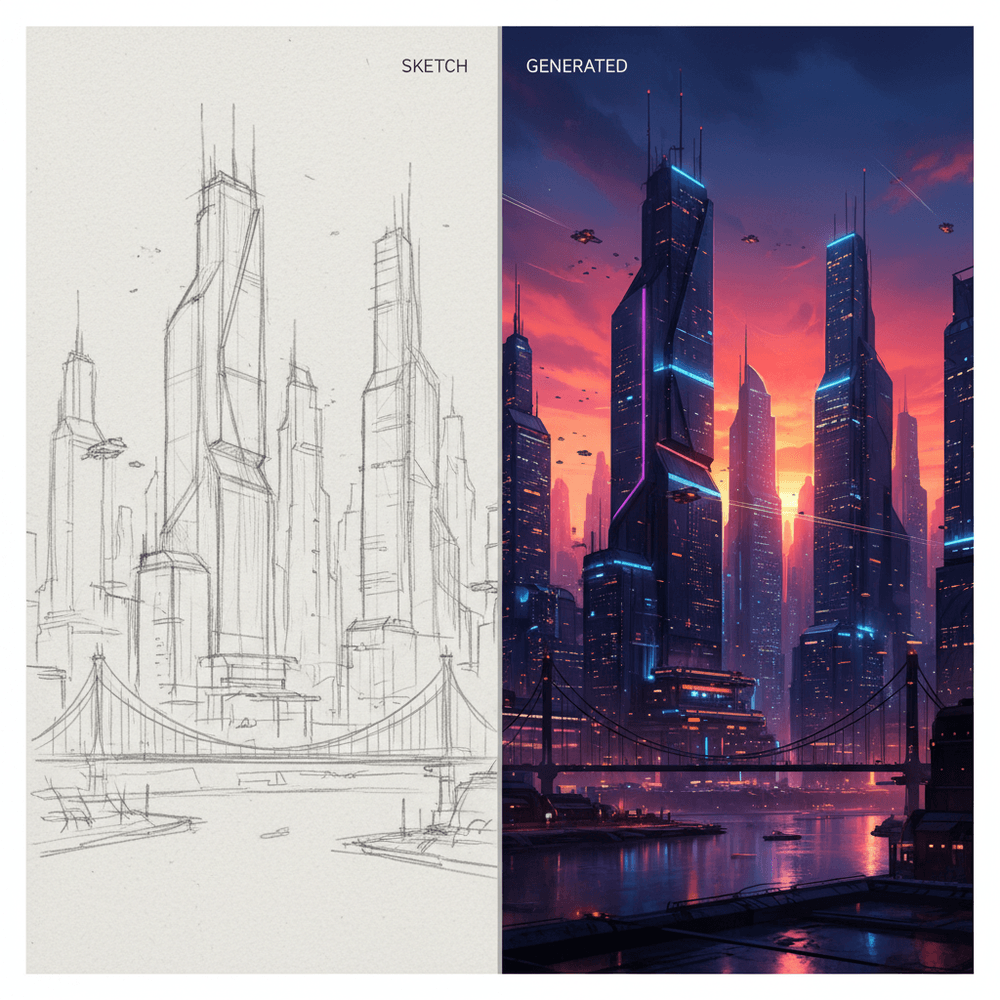
In Wisku AI, the common steps stay close together: make a base image, work from a reference, try another model, and turn the chosen still into motion.
Create a new image from a prompt, or start with a source image when composition or identity matters. If a result is close, send it back through the editor instead of starting over.
Create video from text or an image. Use Animate on a generated still for a direct path to motion, or open the full Wisku AI video generator for other available models and controls.
When the idea is easier to show than explain, upload the image and describe what should change. Some workflows also accept separate subject, scene, or style references.
Different shots need different strengths. Choose from the image and video models currently shown in Wisku AI instead of opening a new service for every test.
See the supported aspect ratios, resolutions, durations, reference inputs, and credit costs before you generate. The available controls change with the model.
Open images from your Wisku AI history and use them as inputs again. It is easier than downloading a draft, renaming it, and trying to remember which version came next.
Join creators who use Wisku AI to generate images, edit references, build visual remixes, and turn still ideas into short videos.
Active Creators
50K+
Artists and Designers
Visuals Generated
1M+
Images and Videos Created
Generation Time
<30s
Average Image Generation Speed
Six common ways to use Wisku AI when the first output is only the start.
Concept Art Exploration
Artists and Illustrators
Make a rough frame from a prompt, add a mood or style reference, then keep editing the version that gets closest to the idea.
Product Visualization
Design and Ecommerce
Place a product in several scenes, fix packaging or background details, and animate the still that communicates the idea best.
Campaign Asset Iteration
Marketing Teams
Turn one brief into several ad, thumbnail, and social options, then keep the prompt and reference close while testing new formats.
Storyboard and Previsualization
Video Creators
Lay out keyframes first. Animate only the ones worth keeping, then move the clips into your regular editing timeline.
Character and Style Studies
Game and Media Teams
Reuse a character or style reference, compare the drift between results, and keep the version that is closest to the original look.
Personal Creative Projects
Independent Creators
Start from a personal photo or a loose idea, try a few interpretations, and edit or animate the result you actually like.
Straight answers about images, video, references, models, credits, usage rights, and where results can vary.
Wisku AI is a browser-based tool for creating and editing AI images, then turning a chosen still into video. Start with text, an image, or both; choose a model; compare the results; and keep working from the version you prefer. The full video generator offers more models and controls.
Yes. Wisku AI can generate and edit images, create video from text or images, and animate an image result from the editor. Model inputs, duration, resolution, audio, and credit cost vary, so check the controls shown before you start a generation.
A reference image can help a model stay closer to a face, outfit, object, composition, or style, but it cannot guarantee an identical result every time. In Wisku AI, you can reuse the strongest output as the next input and make smaller edits between generations.
Wisku AI includes image models such as Nano Banana and GPT Image variants, plus video choices such as Seedance, Kling, Grok, and others currently shown in the product. The lineup changes as providers update their models, so the in-product selectors are the reliable place to check.
A free plan includes credits for trying image generation. Paid plans list additional credits and commercial-use terms, but usage rights can also depend on the selected model, your inputs, third-party rights, and applicable law. Review the current pricing details and terms before using an output commercially.
Wisku AI offers a seven-day refund window for eligible purchases. If you have used less than half of the included credits and are not satisfied, contact support within seven days. Refund eligibility and processing follow the current refund policy shown on the website.
Start with a few words or a reference image. If the first result is close, edit it again. When the frame looks right, animate that version or open the full video generator.
Have feedback, questions, or suggestions? We would love to hear from you.